Chore OS Template Guide
How to set up Chore OS, customize it, and understand how the Done button works out every chore's next due date.
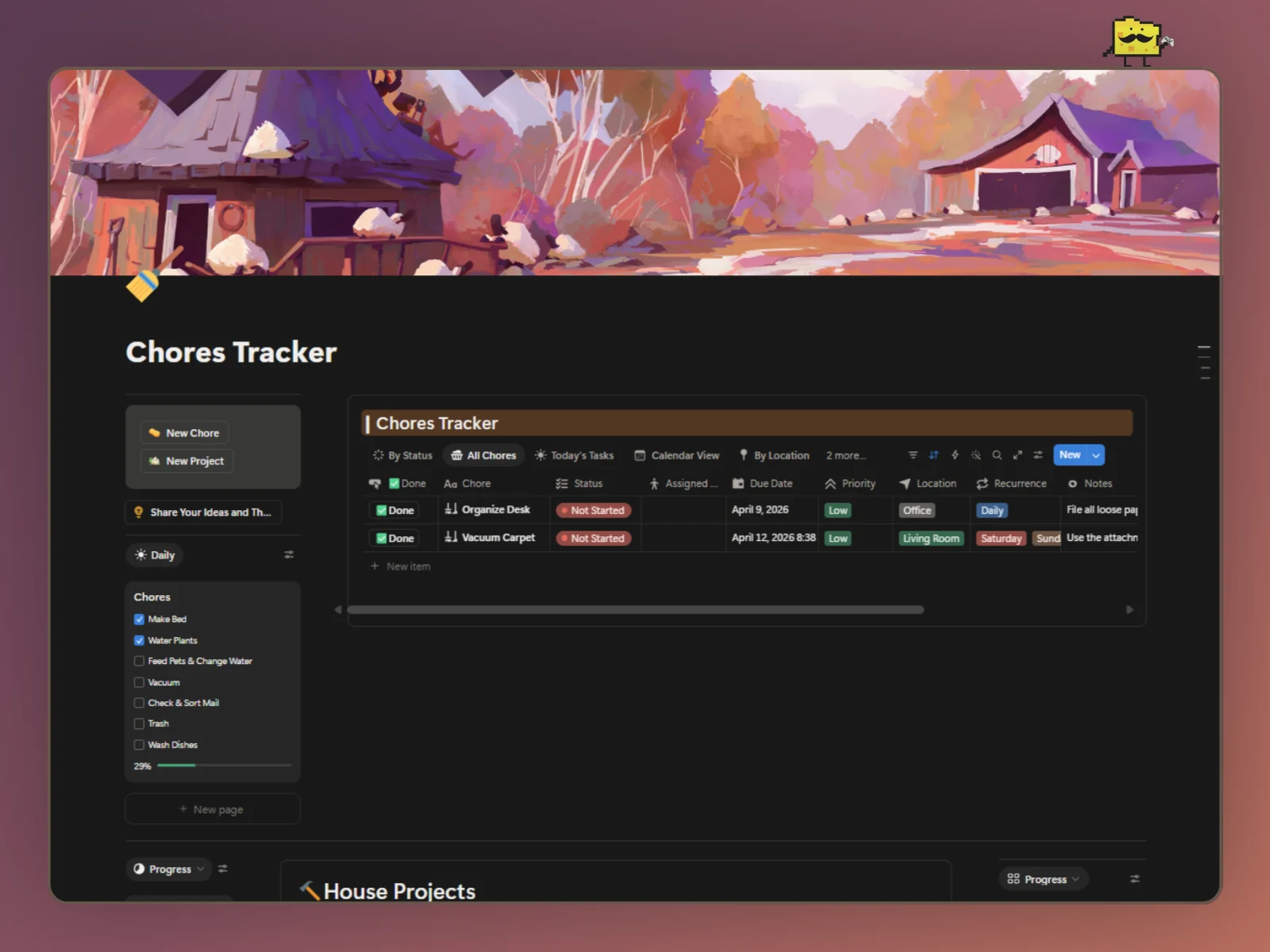
Chore OS - Smart Chores Tracker
This guide shows you how to set up Chore OS, the daily workflow and the workings. You don't need to read all of it. Set it up, come back when you want to change something or you're just curious.
Chore OS is a home tracker meant to be as frictionless as possible. It's built from a few connected databases: your chores, a daily checklist, house projects, progress trackers and a wishlist for things you want later. The chores run on one loop:
Add a chore → Do it → Repeat
You tell a chore when it repeats and the ✅Done button moves the due date for you. If you want more features, message me.
Where to start: If you just want to use it, read The Set Up, A Day With Chore OS and Tips & Tricks. If you want to change how it behaves, jump to Understanding the System, Customization Ideas and Safe Customization Rules.
Duplicate the template before you change anything. Chore OS is easy to make yours but some parts can be technical. A duplicate gives you somewhere safe to break things.
Making it yours: Start with your own chores, projects, dates and rooms. Leave the formula inside the ✅Done button alone until you actually need a due date to behave differently.
The Set Up
Checklist:
- Add your chores
- Pick when each one comes back
- Who does it (optional)
- Create your Daily Chores
- Add your House Projects and Wishlist
- Tune it to your house
Step 1: Add Your Chores
Add the chores you actually do and not the ones you wish you did. Five to eight is plenty for the first week. For example:
- 🗑️ Take out the trash
- 🍽️ Run the dishwasher
- 🧺 Do laundry
- 🪴 Water the plants
- 🧹 Vacuum
- 🐕 Feed the dog
You can add, rename and delete chores whenever you want, so don't try to get the perfect list on day one. Give each one a Location (Kitchen, Bathroom and so on) and a Priority if it helps you.
Step 2: Pick When Each One Comes Back
Two properties do all the work here. Due Date is the next day the chore is due. Recurrence is how often it comes back. Set both and the chore looks after itself. For one-off chores, leave Recurrence empty.
Recurrence | What the ✅Done button does to the Due Date |
|---|---|
| Daily | Moves it to 1 day after you press Done |
| Every other day | Moves it to 2 days after you press Done |
| Weekly | Moves it to 1 week after you press Done |
| Bi-weekly | Moves it to 2 weeks after you press Done |
| Monthly | Moves it to 1 month after you press Done |
| Quarterly | Moves it to 1 quarter (3 months) after you press Done |
| Yearly | Moves it to 1 year after you press Done |
| Monday to Sunday | Moves it to the next selected weekday after the due date. Pick as many as you like |
| Empty | Doesn't move it. Good for one-off chores |
The ------ option in the list is just a divider between the intervals and the weekdays. Don't pick it.
Weekday or interval? Ask yourself if the chore belongs to a day or just needs to happen every so often. Trash night is a day, so pick Monday and Thursday. Cleaning the bathroom is "about once a week", so pick Weekly. You can select as many weekdays as you want on one chore, but only one interval and don't mix the two. The ✅Done button follows one or the other.
Don't rename the Recurrence options yet. The ✅Done button looks for them by their exact names, capital letters included (it's Every other day and Bi-weekly). Rename one and the chores using it stop repeating. The Understanding the System section explains why.
Step 3: Who Does It (Optional)
Some chores shouldn't always land on the same person. Taking out the garbage is the classic. If nobody tracks whose turn it is, it falls back to whoever cares the most. Rotation fixes that without anyone having to reassign the chore by hand.
For example:
Alex → Sam → Dad → Mom → back to Alex. Press Done, and the next person is up.
Setting It Up
Do this on any chore you want to rotate:
- In
Rotation, type the names in order, separated by commas:Alex, Sam, Dad, Mom. - Look at
Assigned to. It shows the first name on the list, so Alex.
Now when Alex finishes and presses ✅Done, Assigned to moves to the next person on the list and shows Sam. After Mom it wraps back around to Alex.
Chores that don't rotate can leave Rotation empty, or have a single name in it, like Alex, if one person always does the chore.
Limits
- Done moves the turn forward no matter who did the chore. If Dad covered for Alex, the turn still goes to Sam. Edit
Turn(a hidden property) by hand if you want it to go somewhere else. Turnis a position.0is the first name,1is the second, and so on. If you reorder the names inRotation, someone different is up.- Add new people to the end of the list. If you remove someone and
Turnis now past the end, set it back to0.
Step 4: Create Your Daily Chores
The Daily Chores database is for the things you do every single day and only need to tick off. Open it, keep the checkboxes you'll use, delete the ones you won't and add your own.
Add a New Daily Chore
- Add a new Checkbox property to the Daily Chores database and name it after the chore, like
Take Pills. - Make it visible on the Gallery card
- Open
Reset Daily. - Click Edit property at the bottom of the stack and pick the new property.
- Set its dropdown to unchecked and click Done.
Steps 3 to 5 are the ones people forget. A new chore that doesn't reset is almost always one that wasn't added to the button.
Keep your daily list short. These work best for things you do every single day. If a chore comes back every few days or on certain weekdays, it belongs in the main Chores Tracker with a Recurrence instead.
Step 5: Add Your House Projects and Wishlist
Chores are the small recurring stuff while projects are the bigger one-time jobs: repainting the bedroom, fixing the deck, redoing the bathroom. Add the projects you're working on to House Projects or the ones you want to do someday in Wishlist & Future Projects.
What to Fill In
Add one page per project and fill in what you know. You don't need all of it on day one.
Project Name: what it is, like "Repaint the bedroom".Status: where it stands.Area: the part of the house (Kitchen, Bathroom, Bedroom, Living Room, Basement, Garage, Exterior, Yard or Other).Start DateandDue Date: when you plan to begin and finish.BudgetandActual Cost: what you planned to spend and what you really spent. Compare them as you go.ContractorandMaterials Needed: who's doing the work and what you still need to buy.Notes: anything else worth remembering.
Connect Chores to a Project
Big projects are just lots of small jobs. Use the Tasks property on a project to link the chores that belong to it, like "Buy paint" and "Tape the trim" for the bedroom.
Linked chores still behave like chores. They keep their own Due Date and Status. For one-off project tasks, leave Recurrence empty so pressing ✅Done doesn't schedule them again.
Wishlist & Future Projects
This is for ideas you aren't ready to commit to yet. Add a page and fill in:
Name: the idea.Category: Purchase, Home Project, Technology, Health & Fitness, Personal Growth or Renovation.Priority: High, Medium or Low.Status: Wishlist, Not Started, On Hold, In Progress or Completed.Estimated Cost: a rough number so you can compare ideas.Motivation: why you want it. Future you will be glad you wrote it down.Alternatives: cheaper or simpler options you considered.Notes: links, quotes, anything.
Upgrading an idea into a real project: when you're ready to commit, add it to House Projects. Either link it over or duplicate the page into House Projects, then fill in the dates and budget. Once it's in House Projects, you can delete the wishlist copy or keep it as a record.
The two Progress databases need no setup. New chores and new projects link to them automatically through their page templates.
Step 6: Tune It to Your House
Everything else in the template is there to help you organize. Use Location, Priority, Notes and Room Image where they help (like a note on which cleaner goes with which bathroom) and ignore them where they don't. You don't need to change the structure to make it yours. Your own chores, days, rooms and projects are the safest things to customize.
A Day With Chore OS
Once it's set up, Chore OS is meant to be boring. Most days you do three things: tick off your daily chores, check what's due, and press ✅Done when you finish something.
Tick Off Your Daily Chores
Tick each chore when you finish it. The next morning, press Reset Daily once and every checkbox goes back to unchecked, ready for the new day.
Check What's Due
Open Today's Tasks. It only shows chores whose Due Date is today or earlier, grouped by Status, so you never scroll past the stuff that isn't due for two weeks. If you prefer a calendar, Calendar View shows the same chores by date.
Finish It, Then Press Done
When you've done the chore, press its ✅Done button. It does a few things at once:
Due Date: moves to the next time the chore is due (the breakdown is in The Due Date Formula below)Status: recurring chores go back toNot Startedso they're ready for next time, and one-off chores becomeCompletedLast Completed: gets stamped with the moment you pressed itTurn: moves on to the next person, if the chore has aRotation
Press Done once per chore. Every press moves the date again. Press it twice on a Weekly chore and it's suddenly two weeks out. If you hit it by accident, fix the Due Date by hand.
Pressing ✅Done on a chore with no Recurrence leaves its Due Date alone. That's on purpose, so one-off chores like "Fix the shelf" don't get a new date.
Understanding the System
Read this part if you want to know how Chore OS works instead of just using it. It walks through every property in the template.
You can use the template without understanding any of this. I explain each property in plain terms first, then go deeper on the more complicated ones.
Simple properties like Chore get a short summary. The important ones (like the formula, the button and the things they read) get the same layout every time:
What it does is the practical version.
Depends on → what has to exist for it to work.
Used by → what else reads it.
How it works is the logic, with the formula where there is one.
If you change this... is what happens when you edit, rename or delete it.
You'll also see a color code:
🟢 Safe to change freely
🟡 Change carefully
🔴 Structural: understand the dependency before changing or deleting it
If you're not sure something is safe, don't delete it. Hide it from your views first. You can always remove it later once you know what depends on it.
How It's Organized
Chore OS is six databases that work together:
- Chores Tracker: every page is one chore. This is where the smart part lives.
- Daily Chores: one page of checkboxes for things you do every day, with the
Reset Dailybutton. - House Projects: bigger one-time jobs with budgets and dates.
- Progress (chores) and Progress (projects): two trackers that show how much is done. Both are named Progress in the template. The one on the left of House Projects tracks chores and the one on the right tracks projects.
- Wishlist & Future Projects: ideas that aren't real projects yet.
Quick definitions if Notion is new to you:
- A formula is a property that calculates its own value from other properties.
- A button is a property you press to make Notion change things for you. It only acts when you press it.
- A relation is a link between pages in two databases, like a chore and the project it belongs to.
The Chores Tracker Database
Chore (Title)
Summary: The name of the chore, like "Take out the trash."
🟢 Rename freely.
Status (Status)
Summary: Where the chore stands right now. The options are Not Started, In Progress and Completed. The ✅Done button sets it when you finish a chore.
🟡 Recoloring and reordering is fine. The button sets Status by the exact option name, so if you rename Not Started or Completed, the status silently stops changing. Open the button and check it after any edit.
Assigned to (Formula)
Summary: Shows whose turn it is on a rotating chore, based on Rotation and Turn. It's a formula, so you don't type into it. Change the people by editing Rotation.
🟡 Your views, like By Person, read it. Rebuilding it from scratch is fine as long as it ends up showing a name.
Location (Select) / Priority (Select)
Summary: Tags for which room a chore lives in and how much it matters. Good for grouping and filtering. Location has Kitchen, Bathroom, Bedroom, Living Room, Laundry Room, Office, Garage, Outdoor and Everywhere by default. Priority has Low, Medium, High and Urgent.
🟢 Rename, add or remove options freely.
Notes (Text) / Room Image (URL)
Summary: Notes is anything worth remembering about a chore, like which cleaner to use or where the spare filter is. Room Image is a link to a photo of the room or the spot, if you want a visual reminder.
🟢 Edit freely.
Projects (Relation) / Progress (Relation)
Summary: Projects links the chore to a House Project. Progress links it to a Progress tracker, and is hidden on the chore page because the page template fills it in for you. Both are connections to other databases, and both show up on the other side too.
🟡 Unlinking is safe. Deleting the property cuts the connection from both ends, so the project loses its Tasks.
Rotation (Text)
Summary: The people who take turns on a chore, in order, separated by commas, like Alex, Sam, Dad, Mom. Leave it empty if the chore doesn't rotate.
🟡 Assigned to and the ✅Done button both read it. If you change the order or the spelling, the next press of Done follows the new list.
Turn (Number)
What it does
Where the chore is in its rotation. 0 is the first name in Rotation, 1 is the second, and so on. This property is hidden so make it visible when needed.
Depends on → Rotation, and the ✅Done button (it moves it)
Used by → Assigned to
How it works
Every press of ✅Done adds 1 to Turn. When it reaches the end of the list it wraps back to 0, so the rotation never runs out using mod().
If you change this...
🟢 Safe to edit by hand any time, like when someone covers a turn. Set it to the position of the person you want up next.
Last Completed (Date)
Summary: The last time you pressed ✅Done on the chore. The button stamps it for you.
🟡 If you edit it by hand, it stops being an honest record of when the chore was really done.
Due Date (Date)
What it does
The next day the chore is due. You set the first one, then ✅Done moves it forward every time you finish the chore.
Depends on → the ✅Done button (it moves it) + Recurrence
Used by → your views and sorting, like Today's Tasks and Calendar View
How it works
Interval chores (Daily, Weekly, Monthly and so on) count forward from the moment you press Done. Finish a Weekly chore late and the next one is a week from the day you actually did it. Weekday chores are different. They count from the scheduled due date, or from today if the chore is already overdue, so trash night stays on trash night.
If you change this...
🟢 Safe to edit by hand any time, like when you reschedule one chore for a busy week. It won't break anything.
Recurrence (Multi-select)
What it does
How often the chore comes back. It's a plain list of options, and it's what ✅Done reads to decide where the next due date goes. It's a multi-select so one chore can follow several weekdays, like trash on Monday and Thursday.
Depends on → nothing. It's just a list of options.
Used by → the ✅Done button
How it works
✅Done checks the chore's Recurrence against a fixed list of names: Monday to Sunday first, then Daily, Every other day, Weekly, Bi-weekly, Monthly, Quarterly and Yearly. If a weekday is selected, it uses the weekdays. If not, it uses the interval. If nothing matches, the Due Date stays put.
If you change this...
🔴 ✅Done finds these options by their exact names. Rename Every other day to Every other Day and every chore using it stops repeating, because the button no longer recognizes it. Adding a new option does nothing until you also add a matching rule to the button (see Customization Ideas).
⚠️ Be careful: select as many weekdays as you want, but only one interval, and don't mix the two. If a chore has a weekday and an interval, the weekday wins and the interval is ignored. If it has two intervals, nothing matches and the date stays put.
Views
Summary: The Chores Tracker comes with several views of the same chores: By Status (board), All Chores (table sorted by due date), Today's Tasks (what's due now), Calendar View, By Location, By Person and Recurrence.
🟢 Views don't change data. Add, edit and delete them freely.
Daily Chores database
Summary: A single page of checkbox properties (Wash Dishes, Vacuum, Make Bed and so on), plus Status, Created and a Progress formula for the progress bar. Nothing here connects to the Chores Tracker.
🟡 Adding or removing a checkbox is fine, but treat it as a change to the Reset Daily button too (see Buttons below).
House Projects
Summary: One page per project, with Status, Area, Start Date, Due Date, Budget, Actual Cost, Contractor, Materials Needed and Notes. Tasks links to the Chores Tracker and Progress links to the projects Progress tracker.
🟢 Everything except the Tasks and Progress relations is safe to edit. Renaming Status or Area options is fine, since no button reads them.
Progress Trackers (Chores & Projects)
What it does
Tracks your chores' and projects' progress automatically.
Depends on → Chores Tracker (or House Projects) + Due Date + Status + the exact option name Completed
Used by → nothing. It's just visuals.
How it works
There are two Progress databases, and each row is one progress bar. Both link automatically when you create a chore or a project, so there's nothing to set up.
- Chores (left of House Projects): links to chores through
Chores Trackerand has three formula properties,Today,WeekandMonth, that turn the linked chores into a progress bar.Select Today,Select WeekandSelect Monthare purely visual and help tell the bars apart in the Gallery card. - Projects (right of House Projects): links to projects through
House Projectsand hasToday Progress,Week Progress,Month ProgressandYear Progress, with matchingTagsproperties for each period.
How the formulas work. The Today formula for chores is a fraction: chores finished today divided by chores due today. The others use the same logic, with a different period in place of today().
max(0,prop("Chores Tracker")
.filter(current.prop("Last Completed") == today())
.length()

/

prop("Chores Tracker")
.filter(current.prop("Due Date")== today())
.length())
The top half takes the chores linked through Chores Tracker, keeps the ones that were last completed today, and counts them. The bottom half counts every linked chore due today. Divide the two and you get the percentage the bar shows. max(0, ...) stops the result from going below zero.
If you change this...
🔴 The formulas read the relations and options by name. Leave the properties alone and change what you link instead.
⚠️ Be careful: it reads Due Date, Status and the exact option name Completed. Rename any of those and the bar stops counting.
Wishlist & Future Projects
Summary: A plain list of ideas with Category, Priority, Status, Estimated Cost, Motivation, Alternatives and Notes. It isn't connected to anything. Nothing reads it, and it doesn't read anything.
🟢 Safe to customize freely. Add your own categories and priorities.
Buttons
Reset Daily (Button)
What it does
Unchecks every daily chore in one press, so you don't have to click each box by hand.
Depends on → every daily chore checkbox (Wash Dishes, Vacuum, etc)
Used by → nothing. It's a shortcut for you.
How it works
Open the button and you'll see two parts:
- When:
Button is clicked. That's the trigger, and it's the only one this button needs. - Do: one action, Edit, set to all pages in the Daily Chores database. Under it is a stack of properties, one line per daily chore. Each line has the checkbox property on the left and a value dropdown on the right.
A daily chore only resets if its line is in that stack and its dropdown is set to unchecked.
If you change this...
🔴 The button only resets the checkboxes listed inside it. Notion has no "uncheck every checkbox" option, so the list is manual. Add a daily chore without adding it to the button and it will never reset.
✅Done (Button)
What it does
Marks a chore finished and moves it forward. Its main job is setting the next Due Date, so chores keep coming back without you retyping dates.
Depends on → Recurrence + Due Date (and Status, Last Completed and Turn, which it updates, plus Rotation, which it reads)
Used by → Due Date, Turn
How it works
Each press runs one action, Edit this page, and sets:
Due Date: the formula belowStatus:Not Startedif the chore recurs,Completedif it doesn'tLast Completed: set to the date and time of the pressTurn: moves to the next person inRotation, using the formula below
The Status formula is short:
if(empty(context("This page").prop("Recurrence")), "Completed", "Not Started")If Recurrence is empty, it's a one-off, so it's Completed. Otherwise it goes back to Not Started for next time. The names have to match your Status options exactly, or the status won't change.
The Turn formula:
mod(context("This page").prop("Turn") + 1, length(split(context("This page").prop("Rotation"), ",")))That adds 1 to Turn, then mod() wraps it back to 0 when it passes the last name. It's the same clock idea as the weekday math below. A chore with no Rotation just stays on 0.
If you change this...
🔴 This button is what makes Chore OS work. If it stops pointing at the right properties, chores stop repeating. Duplicate first and change one thing at a time.
The Due Date Formula (Inside the Done Button)
This is the most complex formula in Chore OS, but it's really just two ideas: one for chores that belong to a day, and one for chores that repeat every so often.
What it does
Works out the next Due Date for the chore you just finished. A chore tied to weekdays, like trash night, moves to the next selected weekday after its due date (or after today, if it's already overdue). A chore on an interval, like Weekly or Monthly, moves forward by that amount from today. A chore with no Recurrence stays put.
Depends on → Recurrence + Due Date
Used by → Due Date
How it works
The big picture: The formula first gives names to the values it needs, then runs one ifs() check from top to bottom. The first check that matches wins and the rest are skipped. In order:
- Weekday chores: if any weekday is selected (Monday → Sunday)
- Interval chores: Daily, Every other day, Weekly, Bi-weekly, Monthly, Quarterly and Yearly
- Anything else (including an empty
Recurrence): theDue Datestays the same
Part 0: the names. lets() gives short names to values the formula uses more than once, so it doesn't repeat them:
rsis the chore'sRecurrenceturned into plain text, likeMonday,Thursdaydis the chore'sDue Datebis where weekday chores start counting: theDue Date, or right now if the chore is already overdue or has no datetis that starting point's weekday number: Monday is 1 and Sunday is 7. Notion always counts it like this, whichever day your week starts onkis how many days from the starting point to the next selected weekday (Part 1 explains it)
rs and d say context("This page") because this formula lives inside a button, and a button has to be told which page it's reading. It just means "the chore I was pressed on." In a normal formula property you'd write prop("Due Date") instead.
Part 1: weekday chores. This is the k line. It's seven small checks, one per day of the week, and min() picks the smallest answer. Here are the first two:
k, min(
    if(contains(rs, "Monday"), mod(7 - t, 7) + 1, 8),
    if(contains(rs, "Tuesday"), mod(8 - t, 7) + 1, 8),
Take the Monday line step by step:
contains(rs, "Monday")asks: is Monday selected on this chore? If not, the line returns 8, which is too big to ever win.- If it is selected,
mod(7 - t, 7) + 1is how many days from the starting point until the next Monday. The7is Monday's number (1) plus 6. mod(..., 7)wraps past Sunday back to Monday, the way a clock wraps past 12. The+ 1makes it always look at the day after the starting point first. If the starting point is a Monday, it comes out as 7, a week away, never 0.- The other six lines are identical except for the day name and the first number: Tuesday 8, Wednesday 9, Thursday 10, Friday 11, Saturday 12, Sunday 13. It's always the day's number plus 6.
min()takes the smallest of the seven, which is the soonest selected day. If no weekday is selected, all seven return 8, sokis 8.
Then the first line inside ifs() uses it:
k < 8, dateAdd(b, k, "days"),If k is under 8, a weekday was found, so add that many days to the starting point. Here's trash night, a chore with Monday and Thursday selected:
| Due Date | You press Done on | Starting point | Days added | New due date |
|---|---|---|---|---|
| Monday | Monday (on time) | Monday, the due date | 3 | This Thursday |
| Thursday | Monday (early) | Thursday, the due date | 4 | The Monday after this Thursday |
| Thursday | Thursday (on time) | Thursday, the due date | 4 | Next Monday |
| Monday | Friday (late) | Friday, today | 3 | Next Monday |
Two things to know here. Weekday chores count from the due date, or from today if the chore is already overdue. So finishing early never pulls the date closer: a Thursday chore finished on Monday goes to the next Thursday, not this one. And it always looks at the day after the starting point, never the starting point itself, so a chore with only Thursday selected always moves a full week.
Part 2: interval chores. Each of these compares Recurrence to an exact name, then adds time to right now, not to the old due date. Here are two of them:
rs == "Weekly", dateAdd(now(), 1, "weeks"),
rs == "Quarterly", dateAdd(now(), 1, "quarters"),
The amounts are the ones from the table in Step 2. The difference from weekday chores is that these count from the day you actually pressed Done. That fits chores that just need to happen every so often: clean the fridge on a Saturday and the next one is a week from that Saturday, however late you were. If you'd rather an interval chore stay on its old rhythm, use weekdays in Recurrence instead. This is also why you can only pick one interval. With two selected, the text is something like Daily,Weekly, which matches no name, so the date stays put.
Part 3: the fallback. The last line is just d. If nothing above matched, or Recurrence is empty, it returns the Due Date unchanged. That's the safety net: a name the formula doesn't recognize never breaks anything, it just doesn't move.
Formula
lets(
  rs, join(context("This page").prop("Recurrence"), ","),
  d, context("This page").prop("Due Date"),
  b, if(empty(d) or d < now(), now(), d),
  t, b.day(),
  k, min(
    if(contains(rs, "Monday"), mod(7 - t, 7) + 1, 8),
    if(contains(rs, "Tuesday"), mod(8 - t, 7) + 1, 8),
    if(contains(rs, "Wednesday"), mod(9 - t, 7) + 1, 8),
    if(contains(rs, "Thursday"), mod(10 - t, 7) + 1, 8),
    if(contains(rs, "Friday"), mod(11 - t, 7) + 1, 8),
    if(contains(rs, "Saturday"), mod(12 - t, 7) + 1, 8),
    if(contains(rs, "Sunday"), mod(13 - t, 7) + 1, 8)
  ),
  ifs(
    k < 8, dateAdd(b, k, "days"),
    rs == "Daily", dateAdd(now(), 1, "days"),
    rs == "Every other day", dateAdd(now(), 2, "days"),
    rs == "Weekly", dateAdd(now(), 1, "weeks"),
    rs == "Bi-weekly", dateAdd(now(), 2, "weeks"),
    rs == "Monthly", dateAdd(now(), 1, "months"),
    rs == "Quarterly", dateAdd(now(), 1, "quarters"),
    rs == "Yearly", dateAdd(now(), 1, "years"),
    d
  )
)
If you change this...
🔴 This formula moves every recurring chore's due date, so changing it changes when every chore comes back. Test changes on a duplicate with a few dummy chores first.
Customize it
- Add a new recurrence option (like "Every 3 days" for the plants): see A new recurrence option in Customization Ideas.
- Keep interval chores on their old schedule: see Count from the old due date in Customization Ideas.
⚠️ Be careful:
- Pressing Done early doesn't pull a weekday date closer. A chore due Thursday and finished on Monday goes to the Thursday after, not this one. Pressing it on a selected day moves to the next selected day, not back to the same day. That's what lets trash night work on Monday and Thursday.
- Your week start doesn't matter.
day()always counts Monday as 1 and Sunday as 7, so the formula works the same whichever day your Notion week starts on. - Option names must match exactly.
Every other dayandBi-weeklyare spelled that way on purpose. The weekday names have to match too. - Don't change the numbers in the weekday lines. Each one is the day's number plus 6: Monday 7, Tuesday 8, up to Sunday 13.
How the System Connects
Chore OS is a handful of databases, but only one chain does the real work.
Select any database to trace what it connects to, and why. Every line here is a real Notion property.
Every connection in this map, listed. Select one to see it on the diagram.
- → ✅Done · button Recurrence + Due Date
- → Chores Tracker · button Due Date, Status, Last Completed, Turn
- → Assigned to · formula Rotation + Turn
- → Progress (chores) · relation Progress
- → House Projects · relation Projects
- → Progress (projects) · relation Progress
- → Reset Daily · button every daily checkbox
The only chain that matters for due dates is Recurrence and Due Date feeding the ✅Done button. The relations connect chores, projects and progress so everything shows up where you need it. The Daily Chores database is separate: it has no due dates and no Done button, just checkboxes and the Reset Daily button that unchecks them. The wishlist doesn't connect to anything. Everything else is information you can add to, rename or ignore, which is why most customization here is safe.
Customization Ideas
Chore OS works as-is, but it's built on patterns you can stretch. Here are a few worth trying, and what each one takes to build.
A new recurrence option
Why: The built-in options don't cover everything. Maybe the plants need water every 3 days.
How: Two small steps:
- Add "Every 3 days" as an option in
Recurrence. - In the
✅Donebutton's formula, add this line directly above the very last line, the one that is justd:
rs == "Every 3 days", dateAdd(now(), 3, "days"),You don't need an extra closing parenthesis. It's one more line in the same ifs().
⚠️ Be careful: the name in the formula has to match the option name exactly, capital letters included. Test it on a duplicate first.
Count from the old due date
Why: Interval chores count from the day you press Done. For some chores you'd rather keep a steady rhythm, like a Weekly chore that should always land on a Friday, even if you finished it on Saturday.
How: In the seven interval lines only (Daily through Yearly), replace the now() inside dateAdd() with d. Weekly becomes:
rs == "Weekly", dateAdd(d, 1, "weeks"),Leave the last line, the one that is just d, alone.
⚠️ Be careful: a chore you finish three days late only moves forward one interval, so it can still be overdue. For chores that belong to a day, use weekdays in Recurrence instead.
Days overdue
Why: "3 days late" tells you more than a red date.
How: Add a formula property called Days Overdue:
if(
  prop("Due Date") < today(),
  dateBetween(today(), prop("Due Date"), "days"),
  0
)
This one uses prop() instead of context("This page") because it's a normal formula property, not a button. Nothing in Chore OS reads it, so it's completely safe.
Project budget check
Why: Seeing whether a project is over budget at a glance beats doing the math in your head.
How: Add a formula property to House Projects called Over Budget:
prop("Actual Cost") - prop("Budget")A positive number means you're over. Nothing reads it, so it's completely safe.
Review views
Why: A full list of chores gets long fast. Filtered views show you only what matters today.
How: Add a few views to the Chores Tracker. These are just filters, no formulas:
- Overdue:
Due Dateis before today - This week:
Due Dateis within this week - Urgent:
Priorityis Urgent
Views don't change any data, so add and delete them freely.
Group projects by area
Why: Seeing everything left in the kitchen, or the yard, helps you plan a weekend.
How: Make a board view of House Projects grouped by Area. No formulas needed.
Time estimates
Why: Sometimes you only have 15 minutes. It helps to see what fits.
How: Add a Number property called Time Estimate (in minutes), then make a view filtered to chores under a time you choose. Nothing in Chore OS reads it, so it's completely safe.
Safe Customization Rules
These apply everywhere in this template, not just to one property:
Treat Chore OS like something you can experiment with. Duplicate it and change one thing at a time. When something behaves differently you'll know what caused it, which beats changing five things and hunting for the problem afterward.
- Values are safe. Names the button reads are not.
Changing a chore's name, location or due date breaks nothing. Renaming aRecurrenceorStatusoption does, because the✅Donebutton finds it by its exact name. - Before deleting anything, ask "does a button or formula reference this by name?"
Nothing stops you from deleting a property the button or a Progress formula depends on. It will just quietly stop working. If you're not sure, hide it from your views first. - Adding is almost always safer than removing.
A new property, view or option can't break something that already worked, since nothing existing was told to expect it. Removing something means checking everywhere it might be relied on. - Test formula changes against real dates.
Especially anything with weekdays ordateAdd(). Make a dummy chore, press✅Done, and check the newDue Dateis what you expected. - Buttons use
context("This page"), properties useprop().
If you copy a formula from one to the other, swap that part or it won't work. - Relations connect two databases.
Deleting a relation property in one database removes it from the other too. Unlink pages instead if you only want to disconnect them.
Tips & Tricks
These are less about the tech and more about keeping chores done in real life. A perfectly built chore tracker you stop opening isn't doing much.
Setting it up well:
- Start with fewer chores than you think you need and add more once the first few feel automatic.
- Use weekdays for chores that belong to a day (trash night) and an interval for chores that just need to happen every so often (the bathroom).
- Keep Today's Tasks open as your main screen. It's the only list you need most days.
- Put big jobs in House Projects and break them into small linked chores. Projects stall when they're one vague line.
Actually keeping up:
Donemeans done. If you didn't do the chore, don't press it. Reschedule it by editing theDue Date.- If you rely on
Last Completed, don't edit it by hand. It's only useful if it's honest. - A chore that's been overdue for weeks is information, not a personal failing. It might be on the wrong schedule or the wrong person. Change the chore before you blame yourself.
- Split big chores into small ones. "Clean the kitchen" sits overdue forever. "Wipe counters" and "Clean the stove" get done.
- Use the wishlist as a pressure valve. Write the idea down, fill in
Motivation, and come back in a month. If you still want it, upgrade it to a project.
Troubleshooting
Debug from the chore outward. When something looks wrong, open the chore's page and check its raw data first, like Recurrence and Due Date. Then check what the ✅Done button is set to do. Only after that should you touch the formula.
I pressed Done and the due date didn't change.
Check three things. Is Recurrence empty? Then the date is meant to stay put. Did you rename a Recurrence option? The button looks for the exact names, so a renamed one isn't recognized. Did you pick two intervals, or the ------ divider? Then nothing matches and the date stays put. Keep one interval, or use weekdays.
I pressed Done and the Status didn't change.
The button sets Status by exact option name. If you renamed Not Started or Completed, or deleted one, the button can't find it and nothing happens. Open the button and make sure the names match your Status options.
I pressed Done on a weekday chore early and the date skipped ahead.
That's on purpose. Weekday chores count from the due date, so finishing early doesn't pull the next one closer. A Thursday chore finished on Monday goes to the next Thursday. If the chore is already overdue, it counts from today instead.
My weekday chores land on the wrong day.
Your week start isn't the cause, the formula doesn't care about it. Check that the weekday option is spelled exactly like the name in the formula, and that the numbers in the seven weekday lines are still 7 to 13, Monday to Sunday.
I picked a weekday and an interval and the interval is ignored.
The weekday wins. Pick one or the other on a chore. If you need both, make two chores.
My Weekly chore moved to a different day of the week.
Interval chores count from the day you press Done, so finishing on a Saturday makes the next one a Saturday. If it needs to stay on a certain day, use that weekday in Recurrence, or see Count from the old due date in Customization Ideas.
I added a new Recurrence option and nothing happens.
A new option does nothing until the ✅Done button has a rule for it. See A new recurrence option in Customization Ideas.
The due date jumped further than I expected.
Each press of Done moves the date again, so a double press counts twice. Fix the Due Date by hand and press it once.
I pressed Reset Daily and one box stayed checked.
Open the button and look at that chore's line. Either it isn't in the stack at all, or its dropdown is still on Select.... Add it or set it to unchecked.
I added a new daily chore and it doesn't reset.
A new checkbox property isn't added to the button automatically. See Add a New Daily Chore.
I renamed or deleted a daily chore and Reset Daily looks off.
Open the button and check the list. Treat any change to a daily checkbox property as a change to the button too.
The rotation skipped someone, or went to the wrong person.
Turn is a position, so check it first. 0 is the first name in Rotation. Done moves it forward no matter who did the chore, so if someone covered, set Turn by hand.
Assigned to is blank.
Rotation is empty, or Turn is past the end of the list. Add the names, or set Turn back to 0. Turn is hidden so make it visible first to edit it.
A project doesn't show its tasks.
The chore needs to be linked to the project. Open the project, find Tasks and add the chore there, or set Projects on the chore. It's the same link from both ends.
A progress bar isn't moving.
Check that the item is linked to the tracker. A bar only counts what's linked to it. New chores and projects should link to their Progress database automatically. If they don't, check the page templates of the Chores Tracker and House Projects.
Before assuming something's broken: look at the chore's raw property values. Most "formula bugs" turn out to be a missing option, a misspelled name or an empty Recurrence.
That's the System
If you remember one thing, make it this: Chore OS should get out of your way.
The whole system is one small idea. Tell a chore when it comes back, press ✅Done, and let the next date set itself. Everything else exists so you spend less time managing your home and more time actually living in it.
If you made it this far and understand why it works, not just that it does, that was the goal. Thank you for reading.
If something breaks, feels off or could be better, I want to hear about it. That allows the template to keep improving.
Feedback form: madebycheese.notion.site/297b6681ba5e80ca971dcb08fcf49490.