Level Up Template Guide
How to set up, customize and understand every part of Level Up, from your first habit to the formulas behind the points.
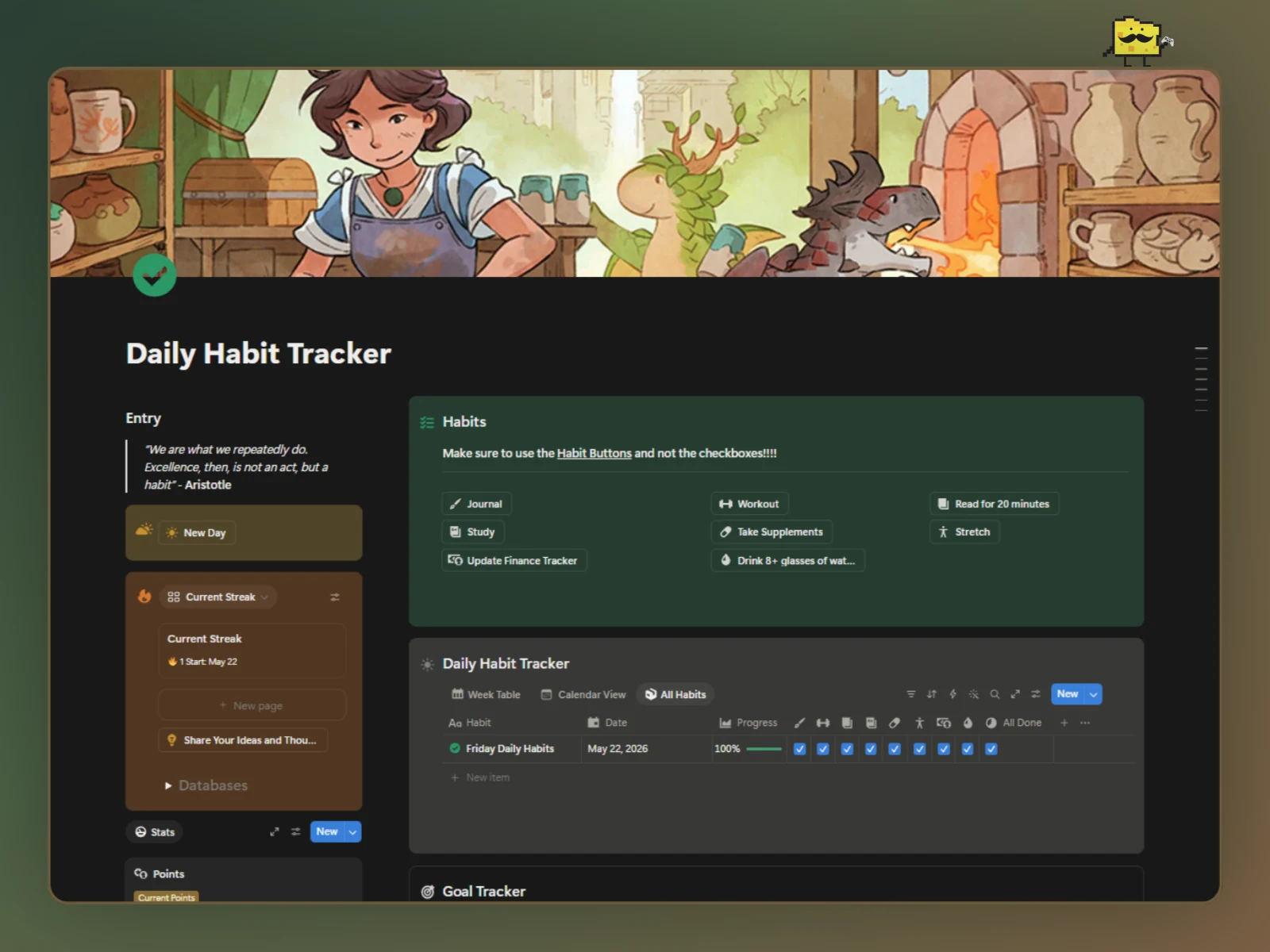
Level Up - Smart Habit Tracker
This guide shows you how to set up, customize and understand each part of Level Up. You do not need to read the whole thing. Start with the setup, come back when you need to change something, and go deeper if you want to make it yours.
Level Up is a daily/weekly habit tracker to help you get motivated and grow by following this simple workflow:
Complete habits → Earn points → Reach goals → Buy rewards
Most of the work happens in the background. You check off your habits and the system handles the tracking, points, goals and rewards for you.
How to use this guide: You don't need to read everything. If you just want to use Level Up, start with Setting Up, Your Daily Workflow and Tips & Tricks. If you want to change how it works, go to Understanding the System, Customization Ideas and Safe Customization Rules. The deeper sections are there if you want to understand what is actually happening underneath.
Before you change anything: make a duplicate of the template first. Level Up is intentionally customizable, but some properties, relations, rollups, formulas and buttons are connected to each other. A duplicate gives you somewhere safe to experiment. If you are not sure what something does, check its explanation in this guide before changing it.
If you want to make Level Up feel like yours. Change the habits, point values, goals and rewards first. Then move into buttons and database properties. Only change formulas or the underlying structure when you actually need to change how the system works.
Setting Up
The five setup steps, at a glance:
- Choose your habits
- Configure them in
Habit Overview - Update the
New Daybutton and each habit's completion button - Set up your first goal (optional)
- Build your
Reward Shop
Details for each are below . This is just so you know what's coming before you read (or don’t read).
Step 1: Choose Your Habits
Before using Level Up, decide which habits you actually want to track.
Start with the habits you already care about and make the system fit your life. Don’t just add habits because the template allows you to.
Start with a small number of habits you can realistically maintain. For example:
- 💧 Drink 8+ glasses of water
- 📖 Read for 20 minutes
- 🧘 Stretch
- 🏋️ Workout
- 💊 Medicine
- 📓 Journal
- 📚 Study
- 💰 Update Finance Tracker
You can change these later, so don’t try to create the perfect routine immediately.
Tip: Start with 3-6 habits. Tracking too many habits can make the system feel like work.
Don't add a habit just because you can. Every habit you add needs its own completion button and needs to be added to the New Day button. A smaller system that you actually use is better than a huge system that becomes another thing to manage.
Each habit you choose gets its own button later, grouped together under Habit Buttons. That's what you'll actually tap day to day.
Step 2: Configure Your Habits
Open Habit Overview. Each habit has their own page containing its basic configuration:
| Property | Purpose |
|---|---|
Name | The name of the habit |
Point Value | How many points completing the habit earns |
Color | The color used to identify the habit |
The Point Value controls how many points are given once the habit is completed.
For example:
- Read → 5 points
- Stretch → 5 points
- Study → 10 points
- Workout → 20 points
Give more points to the harder or valuable habits.
Good first customization: You do not need to change the structure of Level Up to make it yours. Start by changing your habit names, point values and rewards. These are the safest places to personalize the system and they already change a lot of how it feels.
Step 3: Configure Buttons
Buttons are where a lot of the automation in Level Up happens. You usually will not need to touch them after setup, but you do need to update them when you add a new habit.
Important: A new habit does not automatically get added to the New Day button or its completion button. If you skip this step, the habit can exist in Habit Overview but not behave like the other habits.
- In the
New Daybutton’s setting, add your new page to theHabit Overviewproperty. This is what connects the new habit to each day automatically going forward. - Duplicate an existing Habit Button (e.g. Water).
- In the new button’s settings, update the first property: swap the old habit’s checkbox for your new habit’s checkbox, and make sure the button still checks it.
- Update the second property: change the page it adds to
Habits Completedfrom the old habit to your new one. For example, Add Water becomes Add Your new habit.
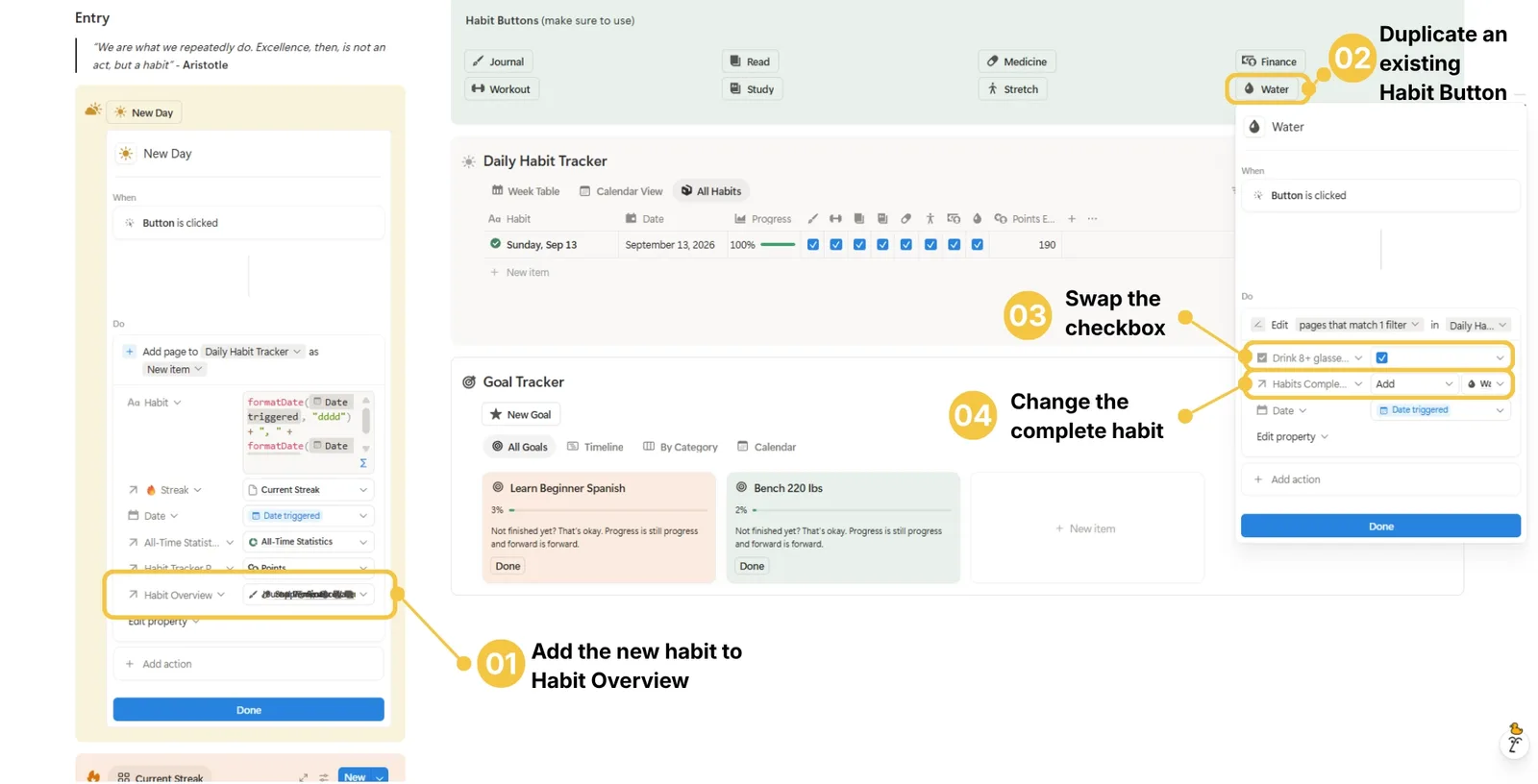
Step 4: Goals
To put your personal goals:
- Go to
Goal Tracker - Click “New Goal” and name it
- Set a
Start DateandGoal Completion Date(your deadline to hit it by). - Pick a
Linked Habitso progress tracks real completions instead of just time passing.
(If you want to track just the time, leave it blank) - Set
Target Count(how many completions this goal needs. Each value is 1 day, so a target of 20 means the habit needs to be completed on 20 different days). - Set
Points Reward. It is automatically added when the goal is completed. - Click the
Donebutton any time to mark the goal done.
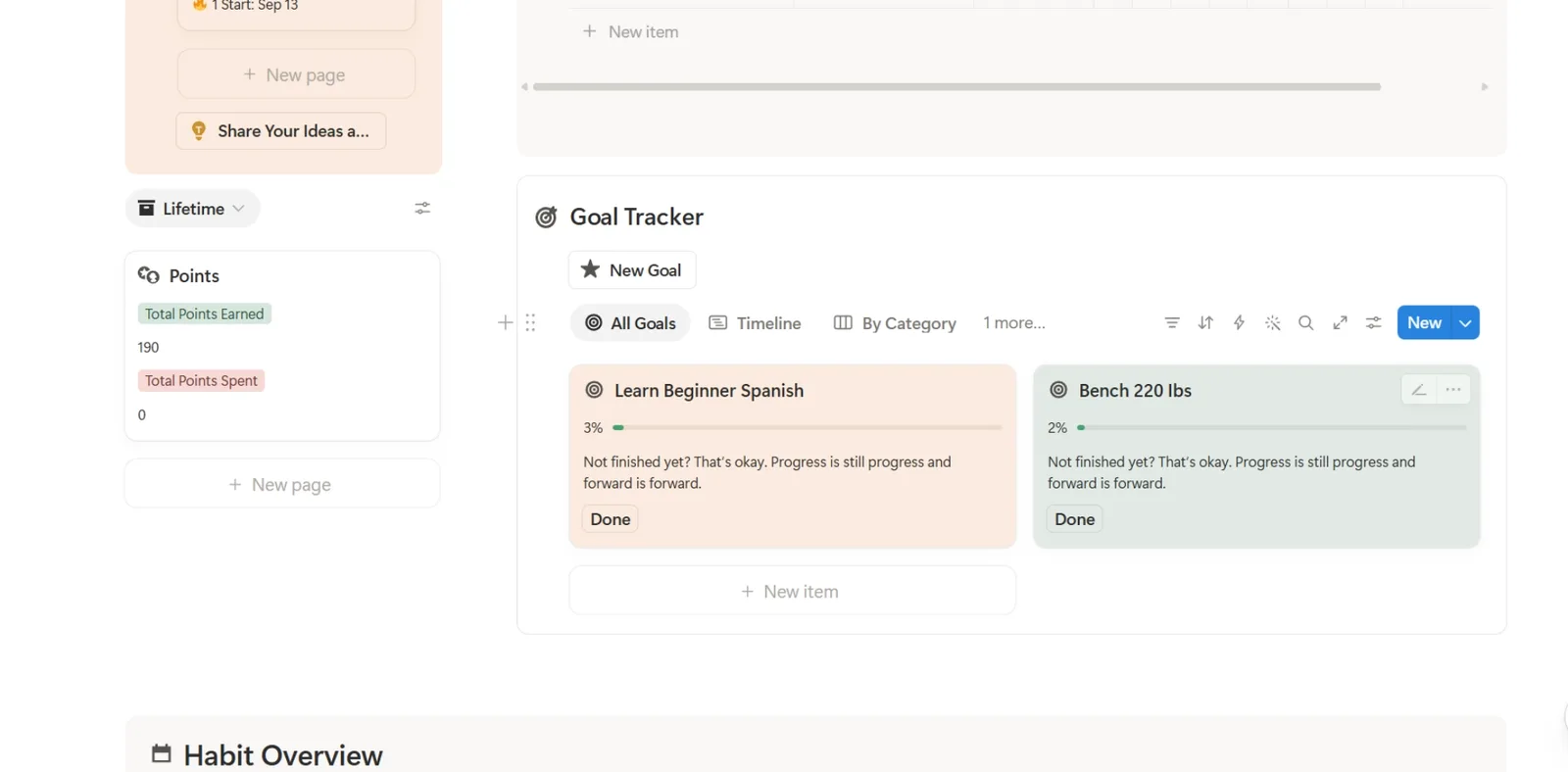
Tip: There's an example goal already set up in Goal Tracker showing Start Date, Linked Habit and Target Count filled in, worth a look before creating your own.
Step 5: Reward Shop
Reward yourself for your consistency and work with personalized rewards.
I would not make the shop a list of rewards you think you should want. Put things here that you would genuinely look forward to earning. The whole point is to give your consistency somewhere to go.
- Click “New Reward”
- Write the name and the needed
Point Cost - Everything else is optional but you can put
Category,Description, Image Cover andDuration
Assuming a perfect day pays out around 190 points, here is a good example:
| Tier | Reward | Point Cost | Days to afford |
|---|---|---|---|
| Small treat | Favorite Snack/Drink | 100 | ~0.5 |
| Small treat | 30 min gaming | 150 | ~0.8 |
| Small-mid | 1 hour gaming | 200 | ~1.1 |
| Mid | Order food you like | 250 | ~1.3 |
| Mid | Movie night | 300 | ~1.6 |
| Mid-high | Day off from chores | 350 | ~1.8 |
| High | Buy something under $20 | 400 | ~2.1 |
| High | Big wishlist item | 500 | ~2.6 |
| Top | Full relax day | 1000 | ~5.3 |
Balancing Your Points Economy
Points earned from habits and the cost of rewards are two halves of the same system. Price one without considering the other, and your shop can either take forever to use or empty out in a day.
Step 1: Find your daily ceiling.
Add up the points from completing every habit in a perfect day. This gives you your daily income cap.
Step 2: Set your cheapest reward.
This part’s a preference. Decide how quickly you want rewards to feel reachable. Putting your cheapest reward around half a perfect day’s points is a solid default. Even an imperfect day still moves you meaningfully closer to something.
Step 3: Space rewards out.
Real reward economies cluster a few small treats close together, leave a real gap before the mid-tier rewards and leave an even bigger gap before the top one. If every reward is just “a little more than the last,” nothing ever feels like an actual milestone.
Step 4: Set a realistic top reward.
Aim for roughly 5–7 days of decent effort. This keeps the biggest reward meaningful without making it feel impossibly far away. Once you get much beyond 10–14 days, it can start feeling more like a distant goal than a reward.
One more place this applies: Goal Tracker’s Point Reward should feel like a genuine milestone, not a rounding error. Price a real personal goal closer to your mid-or-top reward tier, not your cheapest one.
Your Daily Workflow
Once setup is finished, Level Up is intentionally simple. Most days you should only need to create the day and tap the habits you complete.
Do not manually rebuild the system every morning. The New Day button is meant to create the daily record and connect it to the parts of Level Up that need it. If something is missing, check the button configuration before manually editing a bunch of properties.
Create a New Day
Each day, use the New Day button.
This creates a new entry in Daily Habit Tracker and prepares the system for that day’s habits.
A daily entry contains:
- The date
- Your habit checkboxes
Points EarnedProgressStreakinformation
The New Day button is important because it creates the daily record that everything else connects to.
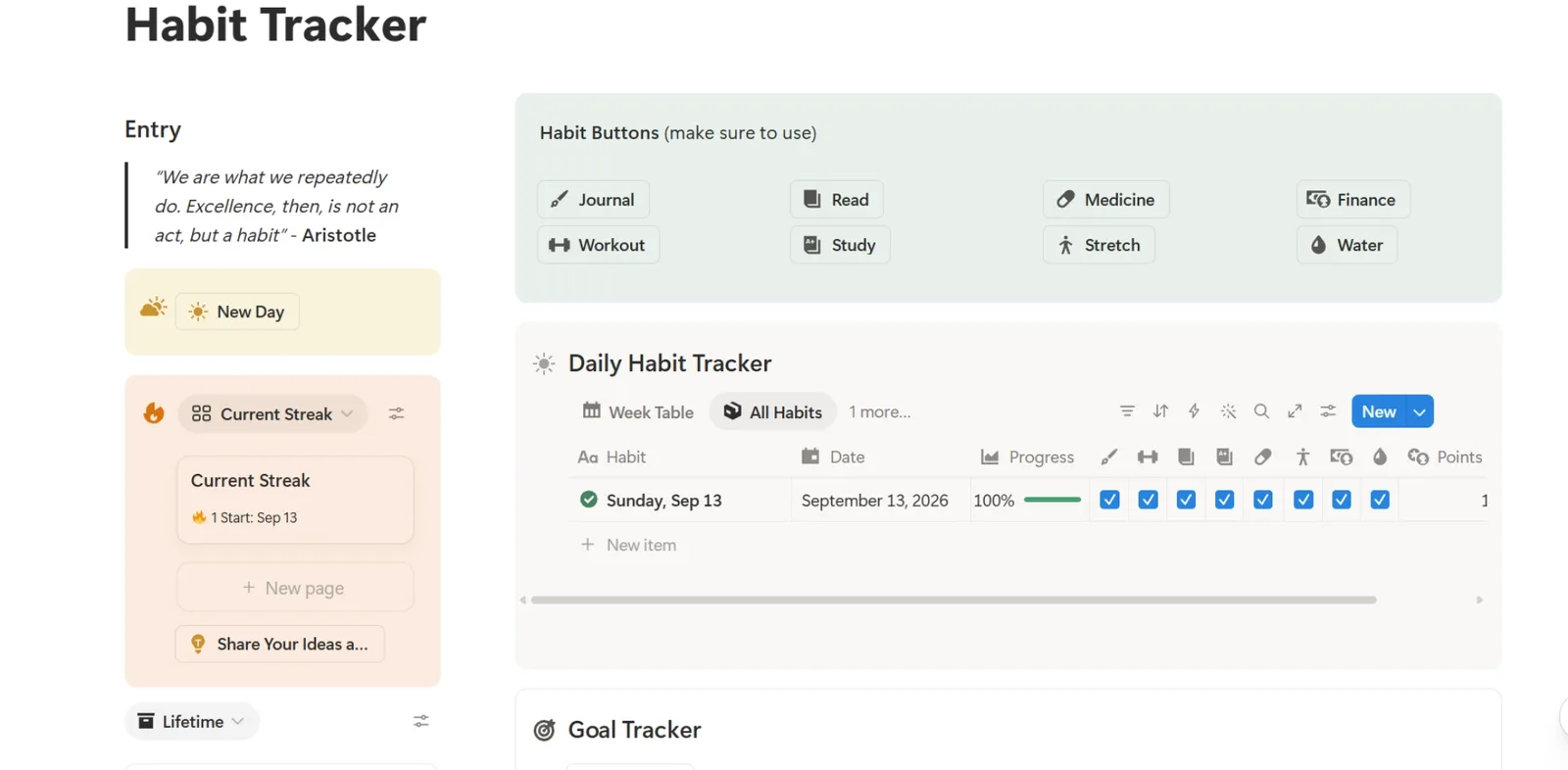
Tip: Not sure what a filled-in day should look like? Open the example day already sitting in Daily Habit Tracker to see Points Earned, Progress and the checkboxes in action.
Complete a Habit
When you finish a habit, use its corresponding button in the Habit Buttons section.
For example:
Read → press the Read button
Workout → press the Workout button
Journal → press the Journal button
The button updates the corresponding checkbox in the current day’s Daily Habit Tracker entry and tracks the completion.
This allows the system to calculate your points and statistics automatically.
Note: The Daily Habit Tracker database is the template’s history tracker, so I recommend not deleting your pages after completion. You can delete once in a while but in doing so, deletes your history, statistics and points.
Understanding the System
This is the part to read if you want to understand how Level Up actually works. It is an in-depth manual about each and every property of each database in Level Up.
If you are new to Notion databases, do not worry if some of this looks technical. You can use the template without understanding relations, rollups or formulas. I explain each property from the practical side first, then go deeper for the more complicated and important ones.
Simple properties just get a short summary, like Date. The ones that matter more (relations, rollups, formulas and buttons) get the same layout every time, so you always know where to look:
What it does is the short, practical version.
Depends on → what has to exist for it to work.
Used by → what else in Level Up reads it.
How it works is the actual logic, with the formula when there is one.
If I change this... is what happens when you edit, rename or delete it.
Customize it and ⚠️ Be careful are there when there’s something worth adding.
If you already know Notion well, you can skim the summaries and jump straight into the formulas, architecture and customization sections.
Level Up is built so you can just focus on your habits and growing. Making that work requires quite a bit behind-the-scenes. This section is for anyone who wants to understand how the template works, whether you’re using it, customizing it or just curious about what’s going on.
Where it matters, you’ll see:
🟢 Safe to change freely
🟡 Change carefully
🔴 Structural: understand the dependency before changing or deleting it
A useful rule: if you are unsure whether something is safe, do not delete it. Hide it from your view first. You can always remove it later once you understand what depends on it.
Three quick definitions, if Notion databases are new to you:
If you already know these, skip ahead
- Relation - a link between two database pages, so one can reference the other (like a day linking to a habit).
- Rollup - a property that pulls in a value from a related page, so you can see it without opening that page.
- Formula - a property that calculates its own value from other properties, automatically, every time something changes.
How it’s organized
Everything in this template branches out from one place: Daily Habit Tracker, where every day gets its own page. Everything else either feeds into that page or reads something back out of it:
Habit Overviewis your habit registry. One page per habit, holding its name, its point value, its color and its own personal calendar.Streak,Habit Tracker PointsandAll-Time Statisticsare each a single page that either motivates you or gives you data.Goal Trackeris just for your goals and longer targets.Reward ShopandPurchases Logare the spending side. What your points are actually for.
Important: Daily Habit Tracker keeps two separate connections to your habits, not one.
Habit Overviewis a blanket connection. Every day links to every habit that existed at the time. This answers “how many habits was I tracking?”Habits Completedis a sparse one. Only the habits you actually finished get added here, by clicking the habit’s button. This answers “which of those did I actually do?”
Every number in this template, Points Earned, Progress, the calendar dots, your streak, even goal progress comes from comparing those two lists against each other. It’s not two connections doing the same job; it’s the reason the system can tell “5 of 5 done” apart from “5 of 8 done” at all.
1. Daily Habit Tracker: the daily log
This is the database everything else in the system revolves around. Each page/row is one day. And every habit you complete, every point you earn and every calendar dot you see traces back to a row in here.
Habit (Title)
Summary: The name of the day’s entry. Auto-generated from the date from the New Day button, so each row reads as something like “Monday, Sept 8” instead of a blank name.
🟢 Can edit - it’s just a label.
Date
Summary: The calendar date this entry represents. Set automatically by the New Day button.
Checkboxes
Summary: One checkbox per habit, showing what got done that day. These get checked automatically by the matching habit button and you don’t tap them directly.
They’re genuinely useful as a quick visual scan of the day, and they’re what All-Time Statistics uses to calculate your lifetime completion rate for each habit. They’re not, however, what calculates your points or daily progress, that job belongs to Habits Completed below. Think of the checkboxes as the display, and Habits Completed as the record.
🔴 Do not edit directly - these are updated by the habit buttons. Manually checking one will not give you points because nothing reads these checkboxes for that purpose.
Habit Overview (Relation)
What it does
Connects each day to every habit that existed when that day was created. It answers one question: “how many habits was I tracking on this particular day?”
Depends on → the New Day button (it sets this) + the pages in Habit Overview
Used by → Points Earned, Progress, the calendar views and Streak (through Progress)
How it works
It’s set once, automatically, by the New Day button and then left alone. This is important because if you add a 9th habit next month, old days shouldn’t suddenly look incomplete just because they only had 8. This relation freezes that number in place.
If you change this...
🔴 Don’t delete or rename this relation unless you also update every formula and button that references it. Deleting it breaks Points Earned, Progress, the calendar views and Streak, all at once.
⚠️ Be careful: this is the one sorta manual step in the whole system. When you add a habit, the New Day button has to be told about it (see Step 3 and the New Day button section below).
Habits Completed (Relation)
What it does
Holds the habits you actually finished that day.
Depends on → each habit’s completion button (it adds the habit here) + the pages in Habit Overview
Used by → Points Earned, Progress, the calendar views, Streak (through Progress) and goal Progress when a goal has a Linked Habit
How it works
It’s filled one entry at a time, only when you tap a habit’s completion button. An empty Habits Completed on a brand-new day is correct and expected. It should only fill in as the day goes on.
If you change this...
🔴 Same as Habit Overview above: don’t delete or rename it. The completion buttons are what write to it, so if a button stops pointing at it, that habit stops counting.
Points Earned (Rollup)
What it does
How many points this day is worth, based on what you actually completed.
Depends on → Habits Completed + Point Value (set once, on each habit in Habit Overview)
Used by → Total Points Earned + This Weeks points
How it works
For every habit in Habits Completed, this grabs that habit’s Point Value and adds them all up. Complete “Workout” (50 points) and “Journal” (15 points) and this shows 65, the moment you tap those two buttons. Add a ninth habit next month worth 30 points, and the day you complete it just works. Nothing here needs to be told a new habit exists.
If you change this...
🔴 Don’t edit it directly, it’s calculated from your completed habits. To change how many points a habit earns, change Point Value on the habit itself (see Habit Overview).
Progress (Formula)
What it does
What percentage of your scheduled habits you completed today.
Depends on → Habit Overview + Habits Completed + Active Days + Date
Used by → the All Done rollup on the Streak page, which feeds Streak
How it works
Two lists, then one division.
activeTodaynarrows your habits down to the ones scheduled for this specific weekday. A habit with noActive Daysset counts as scheduled every day.completedActiveTodayapplies that exact same narrowing to what you finished, so completing something off its scheduled day doesn’t push the percentage past 100%.- The result is completed ÷ scheduled. Do 6 of 6 scheduled habits and this reads 100%, no matter how many other habits exist but weren’t due today. If nothing is scheduled that day, it returns 0 instead of erroring.
This is also the number that quietly decides whether a day counts as a “perfect day” for your streak.
Formula
lets(
  activeToday,
  prop("Habit Overview").filter(or(
    current.prop("Active Days").length() == 0,
    current.prop("Active Days").includes(formatDate(prop("Date"), "ddd"))
  )),
  completedActiveToday,
  prop("Habits Completed").filter(or(
    current.prop("Active Days").length() == 0,
    current.prop("Active Days").includes(formatDate(prop("Date"), "ddd"))
  )),
  if(activeToday.length() == 0, 0, completedActiveToday.length() / activeToday.length())
)
If you change this...
🔴 Changing this formula changes what counts as a completed day, and Streak changes with it. Streak reads Progress through the All Done rollup and only counts days at exactly 100%.
Customize it
I’d leave this one alone and build next to it instead. If you want a different view of your day, add a second formula (see Weighted Progress in Customization Ideas) and keep this one feeding Streak.
⚠️ Be careful: it recalculates for every past day, not just from today. Adding Active Days to a habit that already has history can shift your current streak.
🔥 Streak (Relation)
Summary: Connects every day to the single page that calculates your current streak. Set automatically, never needs touching.
Habit Tracker Points (Relation)
Summary: Connects every day to your points ledger, so Points Earned can be totaled up across all your history. Set automatically.
All-Time Statistics (Relation)
Summary: Connects every day to your lifetime stats page. Set automatically.
2. Habit Overview: your habits and the calendar
One page per habit. This is where you name a habit, price it, color it and where its personal calendar view lives.
Name (Title)
Summary: The habit’s name. e.g. “Workout,” “Journal,” whatever you’re tracking.
🟢 Can edit - rename freely.
Color (Select)
Summary: The color theme for this habit’s calendar. Feeds directly into the Monthly/Yearly/Quarterly views below.
🟢 Can edit - change anytime, purely visual.
Point Value (Number)
What it does
How many points completing this habit is worth. This is the one dial that controls how much a habit pays. A quick 2-minute habit and a demanding 45-minute one shouldn’t be priced the same. Set it in proportion to the effort and check it against what things cost in your Reward Shop so the numbers actually mean something.
Used by → Points Earned, which feeds Total Points Earned + This Weeks points
If you change this...
🟡 Changing this changes how many points the habit earns. It won’t break the system, but it applies immediately, including to habits you already completed in the past.
Active Days (Multi-select)
What it does
(Optional) Which days of the week this habit applies to. Leave it empty for a habit that’s every day. This is what lets a habit like “Meal Prep” only count on Sundays instead of dragging your Progress down every other day of the week.
Used by → Progress (on Daily Habit Tracker)
If you change this...
🟢 Safe to set per habit. A habit with nothing selected is treated as scheduled every day, so your normal daily habits need no extra setup.
⚠️ Be careful: Progress recalculates live, so adding or changing Active Days on a habit with real history re-scores past days too, which can shift your current streak.
Daily Habit Tracker (Relation)
What it does
The reverse side of the blanket relation: every day this habit has existed for. The calendar formulas use it as their master list of days to check against.
Depends on → Habit Overview (the relation on Daily Habit Tracker)
Used by → the calendar views, goal Progress (through Linked Habit) and anything per-habit you build yourself, like a per-habit streak
If I change this...
🔴 Don’t delete it. The calendar views and anything that reads a habit’s history, including goal progress, stop working without it.
Date (Rollup)
Summary: Pulls in the date from every related day, feeding the calendar formulas.
Calendar Overview (Formulas)
What it does
A calendar drawn entirely out of text and color, no native Notion calendar block involved.
Depends on → Daily Habit Tracker (relation) + Habits Completed + Color
Used by → the Monthly, Yearly and Quarterly calendar views (it’s display only)
How it works
This isn’t a real calendar widget. It’s a formula whose output happens to be text, and that text is built, character by character, to look like a calendar grid once it renders.
Each week is one line. Each day in that line is either a colored dot (done), a hollow circle (today), or a blank space (not done yet), all glued together with Notion’s style() function, which lets a formula paint individual pieces of text with color and formatting.
Formula, in three pieces. They answer three questions: which days were completed, where the grid starts and how each row is built.
How it finds “which days were completed”:
check_record,
prop("Daily Habit Tracker")
  .filter(lets(theDay, current, theDay.prop("Habits Completed").map(current.id()).includes(id())))
  .map(current.prop("Date")),
It looks at every day this habit has existed for, keeps only the ones where this specific habit shows up in that day’s Habits Completed, and collects their dates. Everything else in the formula is just deciding how to draw that list.
How it finds where the grid should start:
today_day, today().day(),
sunday_date, if(today_day == 7, today(), dateSubtract(today(), today_day, "days")),
sunday_position, dateSubtract(sunday_date, weeknum, "weeks"),
Notion’s .day() function returns a number 1 through 7, with Sunday as 7. So this rewinds to the most recent Sunday, with one exception: if today already is Sunday, it stays put, since subtracting 7 days from a Sunday would overshoot to the previous week. From there, it steps back a further weeknum weeks (5 for Monthly, 52 for Yearly) to find the very first row of the grid.
How each row actually gets built:
square, [0,1,2,3,4,5,6]
  .map(
      repeat(current, if(today_day >= current, weeknum + 1, weeknum)).split("")
      .map(dateAdd(sunday_position, index * 7 + toNumber(current), "days"))
      .map(ifs(
          includes(check_record, current), style("●", "c", chart_color),
          current == today(), "◌",
          " "
      ))
      .join(" ")
  )
  .map(week_tag.at(index) + " " + current).join("\n"),
This builds the grid one weekday column at a time (all the Sundays, then all the Mondays, and so on) rather than one week-row at a time, then reassembles everything into proper rows right at the end. For every date, it checks: is it in the completed list → colored dot. Is it today → hollow circle. Otherwise → blank space. .join("\n") stacks the finished rows into the multi-line grid you actually see in the property.
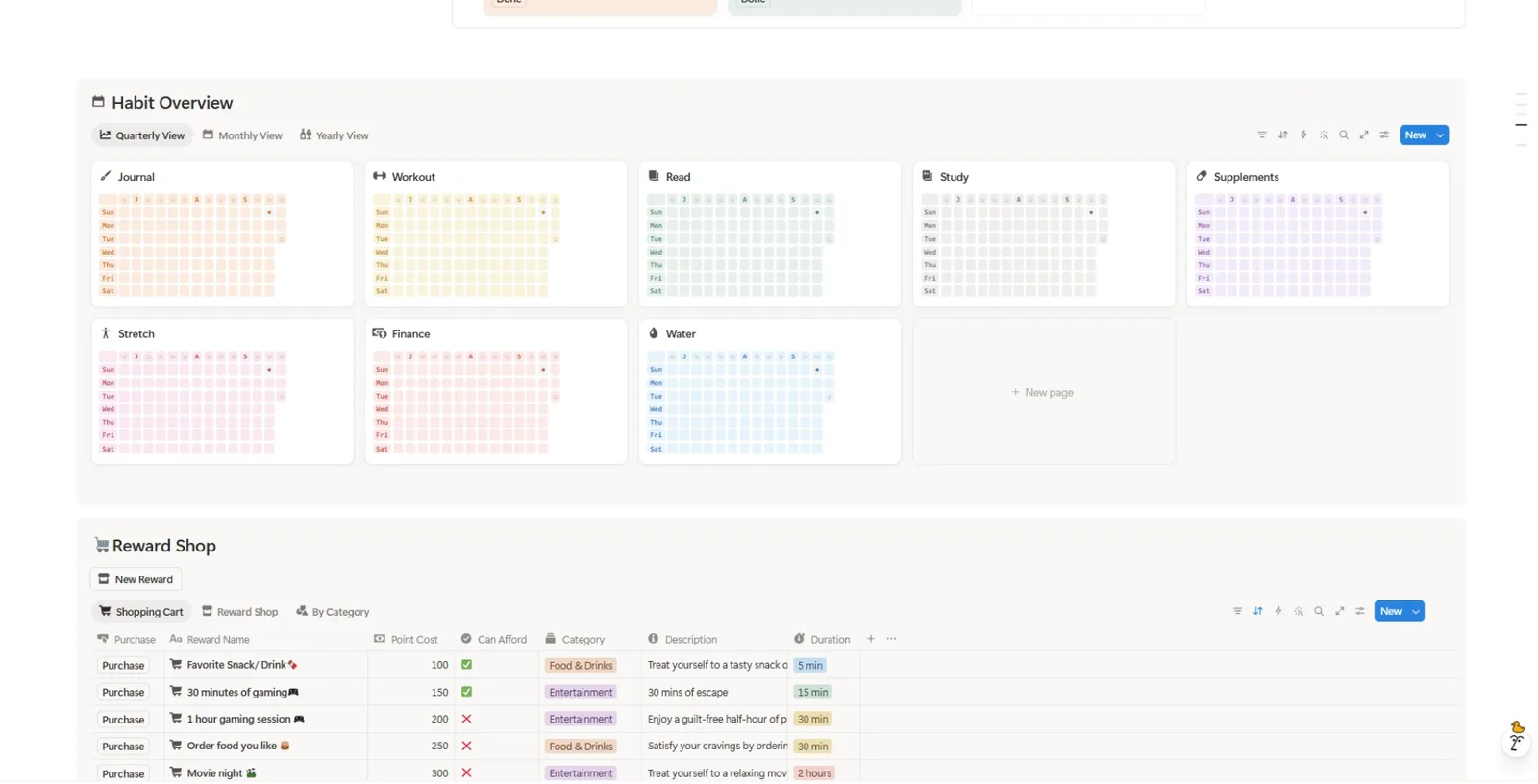
If I change this...
🟡 Nothing else reads this formula, so changing it won’t break other parts of Level Up. It’s still the most advanced formula in the template, so test changes on a copy.
Customize it
Safe to duplicate for a new time range (say, a 12-week view) by copying it and changing weeknum (5 for Monthly, 52 for Yearly). Change Color on the habit to change the calendar colors.
⚠️ Be careful: the calendar is built from spaced text characters, not a real grid. Alignment can look slightly less clean on a narrow phone screen than it does on desktop.
3. 🔥 Streak: how far you’ve gone without missing a day
A single page that looks at every day you’ve ever logged and calculates your current streak from it.
Name (Title)
Summary: Just a label. This page always represents and holds your one, current streak.
Daily Habit Tracker (Relation)
Summary: Connects to every day you’ve ever created, so the formula below has your full history to work with.
Date (Rollup)
Summary: Every day’s date, pulled in as one list.
All Done (Rollup)
Summary: Every day’s Progress value, pulled in as a second list, lined up position-for-position with Date.
Depends on → Progress (on each day in Daily Habit Tracker)
Used by → Streak
If you change this...
🔴 Don’t delete or repoint it. Streak reads it to know which days were perfect.
Streak (Formula)
What it does
Your current streak: how many days in a row you’ve hit 100% completion.
Depends on → Date + All Done (the two rollups on this page, which come from each day’s Progress)
Used by → the streak you see. Nothing else in Level Up reads it.
How it works
- It narrows your whole history down to just the perfect days, the ones where
Progresshit exactly 100%. Then it checks whether today already counts as one of them. - It looks for gaps: stretches of more than a day between one perfect day and the next. It does this by lining every perfect day up against “whichever perfect day came right after it” and flagging any pair more than a day apart as a break point.
- Once it knows where the most recent break happened, the count is simple. If there’s never been a break, your streak is your whole history. If there has been one, it only counts the perfect days after that most recent gap.
Formula
let(
  allDates, prop("Date"),
  allDone, prop("All Done"),
  doneDates, allDates.filter(allDone.at(index) == 1).sort(),
  todayDone, doneDates.filter(dateBetween(current, now(), "days") == 0).length() > 0,
  nextDates, doneDates.slice(1).concat(if(todayDone, [now()], [])),
  breaks, doneDates.filter(dateBetween(nextDates.at(index), current, "days") > 1),
  lastBreak, if(breaks.empty(), empty(), breaks.last()),
  streak,
  if(doneDates.empty(), 0,
    if(lastBreak.empty(), doneDates.length(),
      doneDates.filter(current > lastBreak).length()
    )
  ),
  "🔥" + format(streak) + "\nStart:" + formatDate(
    if(lastBreak.empty(), doneDates.first(), lastBreak), "MMM D"
  )
)
If you change this...
🟡 Nothing else reads this formula, so changing it won’t break other parts of Level Up. It’s one of the most complex formulas in the system though, so test changes on a copy first.
Customize it
The first 1 that appears is the “perfect day” threshold (100%, not 90%). That’s the one number you can change if you want to.
⚠️ Be careful: the Start date it shows can look off by a day. Deliberately break a streak once and check it before you trust it (more in Troubleshooting).
4. Habit Tracker Points: your points ledger
One place your entire point economy lives: what you’ve earned, what you’ve spent and what you’re sitting on right now.
Total Points Earned (Formula)
What it does
All the points you’ve ever earned. It doesn’t subtract spending, Current Points does that.
Depends on → Points Earned (Daily Habit Tracker) + Achieved? and Points Reward (Goal Tracker)
Used by → Current Points, which Reward Shop and Can Afford read
How it works
Two sums in one formula. The first adds up every day’s Points Earned. The second looks at your goals, keeps only the ones marked Achieved?, and brings in each one’s Points Reward (a goal with no reward counts as 0).
Formula
prop("Daily Habit Tracker").map(current.prop("Points Earned")).sum()
+
prop("Goal Tracker")
  .filter(current.prop("Achieved?"))
  .map(if(empty(current.prop("Points Reward")), 0, current.prop("Points Reward")))
  .sum()
If you change this...
🟡 This feeds your points balance, so changing it changes what you can afford in the Reward Shop. Test changes on a copy.
⚠️ Be careful: goals only count once Achieved? is checked. The formula also refers to the goal reward by name, so if you rename that property, update it here too.
This Weeks points (Formula)
What it does
Your net point change for the current week: points earned, plus achieved goals, minus points spent.
Depends on → Points Earned + Date (Daily Habit Tracker), Points Cost + Purchase Date (Purchases Log), Achieved? + Date Achieved + Points Reward (Goal Tracker)
Used by → nothing. It’s a display number.
How it works
Three separate totals, combined into one net number: points earned this week, goal bonuses achieved this week and points spent this week. The "GGGG-WW" bit is how it checks “did this happen during the current calendar week,” comparing the ISO week number and year together so it can’t get confused around New Year’s.
Formula
lets(
  earnedThisWeek,
  prop("Daily Habit Tracker")
    .filter(formatDate(current.prop("Date"), "GGGG-WW") == formatDate(now(), "GGGG-WW"))
    .map(current.prop("Points Earned"))
    .sum(),

  spentThisWeek,
  prop("Purchases Log")
    .filter(formatDate(current.prop("Purchase Date"), "GGGG-WW") == formatDate(now(), "GGGG-WW"))
    .map(current.prop("Points Cost"))
    .sum(),

  goalsThisWeek,
  prop("Goal Tracker")
    .filter(current.prop("Achieved?"))
    .filter(and(
      !empty(current.prop("Date Achieved")),
      formatDate(current.prop("Date Achieved"), "GGGG-WW") == formatDate(now(), "GGGG-WW")
    ))
    .map(if(empty(current.prop("Points Reward")), 0, current.prop("Points Reward")))
    .sum(),

  earnedThisWeek + goalsThisWeek - spentThisWeek
)
If you change this...
🟡 Nothing depends on this formula, so changing it won’t break anything else. It’s still an advanced formula, so test changes on a copy.
Customize it
Swap the week-matching token for a month one to build a monthly recap (see Customization Ideas).
⚠️ Be careful: a goal only shows up in the week’s total if it the Date Achieved was mark, usually by done by the Done button.
Current Points (Formula)
Summary: Your points balance right now: Total Points Earned minus Total Points Spent.
Depends on → Total Points Earned + Total Points Spent
Used by → Current Points on Reward Shop, which Can Afford reads
If you change this...
🔴 Don’t delete it. Your Reward Shop reads it to know what you can afford.
Total Points Spent (Rollup)
Summary: Adds up everything you’ve spent by summing the points cost in Purchases Log.
Depends on → Points Cost (Purchases Log)
Used by → Current Points
If you change this...
🔴 Don’t delete or repoint it. Without it, spending stops coming off your balance.
Tags
Summary: Visual tags to separate each total in the Gallery view.
Daily Habit Tracker, Purchases Log, Goal Tracker (Relations)
Summary: The three sources this ledger pulls from, every day, every purchase and every goal.
5. Goal Tracker: bigger targets, tracked over time
Separate from day-to-day habits, this is for longer-term goals like “meditate 20 times,” “save $500,” anything with a start and an end.
Goal (Title)
Summary: The name of your goal.
🟢 Can edit freely.
Category (Select)
Summary: A simple tag to organize goals by type.
🟢 Can edit freely.
Start Date / Goal Completion Date
Summary: When the goal begins and your deadline to hit it by.
Linked Habit (Relation)
What it does
(Recommended) Ties this goal to a specific habit, so its progress reflects real completions instead of just time passing. Leave it empty for goals that aren’t tied to a daily habit, like “save $500”, or if you want to track your progress by time.
Depends on → the pages in Habit Overview
Used by → goal Progress (the goal also shows up on that habit’s page in Habit Overview)
If you change this...
🟢 Safe to set or clear per goal. Clearing it (or leaving Target Count empty) switches Progress back to counting time instead of completions.
Target Count (Number)
Summary: (Used with Linked Habit) How many completions of the habit this goal needs. A target of 20 means the linked habit needs to be completed on 20 separate days.
Used by → goal Progress
If you change this...
🟢 Safe to set per goal. Changing it changes how many completions equal 100%, so Progress moves with it. If it’s empty, Progress falls back to counting time.
Progress (Formula)
What it does
How close you are to finishing a goal.
Depends on → Achieved? + Linked Habit + Target Count + Start Date + Goal Completion Date, plus Daily Habit Tracker and Habits Completed when a habit is linked
Used by → nothing. It’s the progress bar you see.
How it works
It picks one of three modes, in this order:
Achieved?is checked: you’re at 100%, no matter what the dates say.- No linked habit, or no
Target Count: it counts how much of your total time window has elapsed (0% before theStart Date, 100% once theGoal Completion Datepasses). - A linked habit and a target: it counts your actual completions toward that target, capped at 100%. A goal you’re consistent on climbs steadily. One you fall behind on honestly shows it, instead of ticking up with the calendar regardless of effort.
Formula
if(
  prop("Achieved?"), 1,
  if(
    or(prop("Linked Habit").length() == 0, empty(prop("Target Count"))),
    if(
      now() < prop("Start Date"), 0,
      if(
        or(now() > prop("Goal Completion Date"), prop("Start Date") == prop("Goal Completion Date")),
        1,
        round(
          dateBetween(now(), prop("Start Date"), "days")
          /
          dateBetween(prop("Goal Completion Date"), prop("Start Date"), "days")
          * 100
        ) / 100
      )
    ),
    lets(
      habitId, prop("Linked Habit").first().id(),
      completedSoFar,
        prop("Linked Habit").first().prop("Daily Habit Tracker")
          .filter(current.prop("Date") <= now())
          .filter(
            lets(
              theDay, current,
              theDay.prop("Habits Completed").map(current.id()).includes(habitId)
            )
          )
          .length(),
      min(1, round(completedSoFar / prop("Target Count") * 100) / 100)
    )
  )
)
If you change this...
🟡 It’s advanced, but it’s purely visual and nothing depends on it, so changing it won’t break other parts of Level Up.
Customize it
Safe to experiment with. Duplicate the property first so you can compare the two side by side.
Achieved? (Checkbox)
Summary: Marks the goal as done. Setting this directly still works, but see Done below for the version that also credits your weekly points.
Used by → goal Progress + Total Points Earned + This Weeks points
If you change this...
🟡 Checking it by hand still maxes out Progress and counts toward Total Points Earned, but it doesn’t stamp Date Achieved, so the goal won’t show up in This Weeks points. Use the Done button instead.
Date Achieved (Date)
Summary: Stamped automatically the moment you hit the Done button. This is what lets an achieved goal’s points show up in the correct week’s total.
Depends on → the Done button
Used by → This Weeks points
If you change this...
🟡 Without a date here, an achieved goal still counts toward Total Points Earned but never lands in a week’s total.
Point Reward (Number)
Summary: (Optional) How many points finishing this specific goal is worth. Set it per goal, a big goal and a small one shouldn’t pay the same.
Used by → Total Points Earned + This Weeks points
If you change this...
🟢 Safe to set per goal. It changes the bonus that goal adds to your points once it’s achieved.
Habit Tracker Points (Relation)
Summary: Connects this goal to your points ledger, so an achieved goal’s Point Reward can be counted.
Status (Formula)
What it does
A quick text label showing where the goal stands right now (something like “Keep Going!”) to give you motivation at a glance.
Depends on → Achieved?
Used by → nothing. It’s a display label.
If you change this...
🟢 Display only, so changing it won’t affect points, streaks or progress.
Done (Button)
What it does
The way to mark a goal complete. Checks Achieved? and stamps Date Achieved with the moment you clicked it. That timestamp is what lets the points show up in the correct week, not just your lifetime total.
Depends on → Achieved? + Date Achieved
Used by → Total Points Earned + This Weeks points
How it works
The button runs one action, Edit the Goal page:
Achieved?: checks itDate Achieved: set to the date triggered
If you change this...
🟡 If you remove either step, the goal can still complete, but a missing Date Achieved means its points never land in the weekly total. Keep both.
6. Reward Shop: spending what you’ve earned
Reward Name (Title)
Summary: What you’re rewarding yourself with.
🟢 Can edit - add, remove or rename anything here.
Description (Text)
Summary: An optional short note/description about the reward.
Category (Select) / Duration (Select)
Summary: Simple tags for organizing and browsing rewards.
🟢 Can edit freely.
Point Cost (Number)
What it does
What this reward costs. This is the anchor for your whole points economy. It’s what makes a habit’s Point Value mean something concrete, rather than just an arbitrary number.
Used by → Can Afford + the Purchase button (it copies the cost into Purchases Log)
If you change this...
🟢 Adjust anytime to rebalance how quickly rewards feel earned. It won’t break anything, and past purchases keep the cost they were bought at.
Habit Tracker Points (Relation) / Current Points (Rollup)
Summary: Connects to your ledger and pulls in your current balance, so you can see what you can afford at a glance.
Can Afford (Formula)
What it does
Shows whether you can afford a reward right now: ✅ or ❌.
Depends on → Current Points + Point Cost
Used by → nothing. It’s a display.
How it works
It checks whether Current Points from the points ledger is at least Point Cost. If it is, you get the checkmark, if not the x.
Formula
if(
  toNumber(prop("Current Points").first()) >= prop("Point Cost"),
  "✅",
  "❌"
)
If you change this...
🟡 Nothing depends on it, so changing it won’t break anything else.
Customize it
Swap the ✅ and ❌ for anything you like.
⚠️ Be careful: the formula wraps Current Points in .first() and toNumber(). Keep both if you edit it.
Purchase (Button)
What it does
Logs a purchase. Tapping it records the cost and timestamp in Purchases Log, which is what gets subtracted from your points balance.
Depends on → Point Cost + Purchases Log + Habit Tracker Points
Used by → Total Points Spent (which feeds Current Points) + This Weeks points
How it works
The button runs one action, Add a page to Purchases Log, and fills in:
Name: a formula that sets it to the name of the reward bought plus “Purchase”Point Cost: the cost number of the rewardPurchase Date: set to the date triggeredHabit Tracker Points: connects to the points ledger so it can be subtracted
If you change this...
🟡 Keep all four. If the cost or the ledger connection is missing, the purchase won’t be subtracted from your balance.
7. Purchases Log: your spending history
Purchase Date (Date)
Summary: When a purchase happened. It is stamped automatically by the Purchase button.
Points Cost (Number)
Summary: What that purchase cost, copied from the reward at the time of purchase.
8. All-Time Statistics: your lifetime completion rate
A single page tracking what percentage of the time you’ve completed each habit, across your entire history based on if their checkbox is checked.
Daily Habit Tracker (Relation)
Summary: Connects to every day you’ve ever logged.
One rollup per habit
Summary: The percentage of all your days where that specific checkbox was checked.
Note: if you add a new habit, remember to add a matching rollup here too, it’s a separate step from setting up the habit itself, since this page works off the checkboxes rather than the relation-based system everything else uses.
🟢 Can edit - add one for each new habit.
9. The Buttons
New Day
What it does
Creates today’s entry in Daily Habit Tracker and connects it to everything that needs it.
Depends on → Habit Overview (the habits you’ve told it about) + your Streak, Habit Tracker Points and All-Time Statistics pages
Used by → everything. Every point, streak and calendar dot starts from the day this button creates.
How it works
Each click adds a new page to Daily Habit Tracker and sets:
Habit: the day’s name, from the formula belowDate: the date triggered🔥 Streak,Habit Tracker PointsandAll-Time Statistics: connected to their pagesHabit Overview: connected to every currently existing habit
That last one is the manual step in the whole system. Whenever you add a new habit, this button has to be opened up and told about it directly, since there’s no way to make “connect to everything” happen automatically (that I know of).
Formula (the Habit name):
formatDate(context("Date triggered"), "dddd") + "," + formatDate(context("Date triggered"), "MMM D")Outputs, for example: Sunday, Sep 13
If you change this...
🔴 Don’t remove any of the connections. Each one feeds a different part of Level Up: Habit Overview feeds Progress and the calendars, 🔥 Streak feeds your streak, Habit Tracker Points feeds your points and All-Time Statistics feeds your lifetime stats. A day created without one of them won’t show up in that part.
⚠️ Be careful: new habits have to be added to this button by hand (see Step 3). The Habit name formula is safe to change if you want your days named differently.
Each habit’s completion button (e.g. Journal)
What it does
Marks that specific habit done for today: checks its checkbox, adds today’s page to Habits Completed for that habit, and timestamps the moment. This is the real mechanism behind everything.
Depends on → that habit’s checkbox + Habits Completed + that habit’s page in Habit Overview
Used by → Points Earned, Progress, the calendar views, Streak and goal Progress
If you change this...
🔴 Each habit has its own button, so editing one only affects that habit. If it stops pointing at the right checkbox or the right Habit Overview page, that habit stops counting. When you add a habit, duplicate an existing button (see Step 3) instead of building one from scratch.
Done (Goal Tracker)
Marks a goal achieved and timestamps exactly when. See the Done property above.
Purchase (Reward Shop)
Logs a redemption to Purchases Log. See the Purchase property above.
How the System Connects
The most important part of Level Up is that the databases aren’t independent.
The architecture roughly looks like this:
Select any database to trace what it connects to, and why. Every line here is a real Notion property.
Every connection in this map, listed. Select one to see it on the diagram.
- → Habit Overview · relation Habit Overview
- → Habit Overview · relation Habits Completed
- → 🔥 Streak · relation 🔥 Streak
- → All-Time Statistics · relation All-Time Statistics
- → Habit Tracker Points · relation Habit Tracker Points
- → Habit Overview · relation Linked Habit
- → Habit Tracker Points · relation Habit Tracker Points
- → Habit Tracker Points · rollup Current Points
- → Purchases Log · button Purchase
- → Habit Tracker Points · rollup Total Points Spent
This architecture is why changing one part of the system can sometimes require changes elsewhere.
Customization Ideas
The template works fine as-is, but it’s built on patterns you can extend once you understand them. Here are a few worth trying, each with what it actually takes to build.
Per-habit streaks
Why: 🔥 Streak only tracks days where everything got done. A lot of people want to see “Workout: 12 days in a row” on its own, independent of whether Journal or Water happened that day.
How: Add a Streak formula directly on Habit Overview, it’s the same logic as the main Streak formula, just sourcing its dates from this habit’s own completion history instead of the sitewide All Done rollup:
let(
  doneDates, prop("Daily Habit Tracker")
    .filter(lets(theDay, current, theDay.prop("Habits Completed").map(current.id()).includes(id())))
    .map(current.prop("Date"))
    .sort(),
  todayDone, doneDates.filter(dateBetween(current, now(), "days") == 0).length() > 0,
  nextDates, doneDates.slice(1).concat(if(todayDone, [now()], [])),
  breaks, doneDates.filter(dateBetween(nextDates.at(index), current, "days") > 1),
  lastBreak, if(breaks.empty(), empty(), breaks.last()),
  streak,
  if(doneDates.empty(), 0,
    if(lastBreak.empty(), doneDates.length(), doneDates.filter(current > lastBreak).length())
  ),
  "🔥" + format(streak)
)
Weighted Progress (by points, not habit count)
Why: Progress currently treats every habit equally, finishing your one 50-point habit and skipping seven 15-point ones shows the same as the reverse. A weighted version reflects effort, not just headcount.
How: Add a second formula, Weighted Progress, on Daily Habit Tracker:
if(
  prop("Habit Overview").map(current.prop("Point Value")).sum() == 0, 0,
  prop("Habits Completed").map(current.prop("Point Value")).sum()
  /
  prop("Habit Overview").map(current.prop("Point Value")).sum()
)
Keep the original Progress around too. This is a second lens, not a replacement, and 🔥 Streak keeps reading the original if “100% done” should still mean every habit, not just every point.
Habit Categories
Why: Once you’re past 8-10 habits, a flat list gets hard to scan. Grouping by “Health,” “Work,” “Mindfulness,” etc. makes the habit list itself easier to navigate.
How: Add a Category Select property to Habit Overview (same pattern Goal Tracker already uses). No formula changes needed anywhere. This is purely organizational. Add a grouped or filtered view on Habit Overview once it’s populated.
Difficulty-based point values, instead of setting them by hand
Why: If you’d rather pick a difficulty tier than land on an exact number, this removes the guesswork per habit.
How: Add a Difficulty Select (Easy / Medium / Hard) to Habit Overview, then replace the manual Point Value number with a formula:
if(prop("Difficulty") == "Hard", 40, if(prop("Difficulty") == "Medium", 20, 10))Adjust the three numbers to fit your own point economy (see Balancing Your Points Economy above). This is the exact same difficulty-tier idea used elsewhere in Cheese’s templates.
A monthly recap, alongside the weekly one
Why: This Weeks points answers “how am I doing right now.” A monthly version answers the bigger-picture question without waiting for a full year.
How: Duplicate the This Weeks points formula onto Habit Tracker Points, swapping the week-matching token for a month one:
formatDate(current.prop("Date"), "GGGG-MM") == formatDate(now(), "GGGG-MM")in place of "GGGG-WW", applied the same way across the earned/spent/goals sections.
A one-line note on every day
Why: Numbers don’t tell you why a day went badly. A quick “sick” or “travelling” next to a missed day makes your history a lot easier to read later.
How: Add a Text property (call it Note) to Daily Habit Tracker and show it in your table view. Nothing in Level Up reads it, so this one is completely safe.
Review views for your days
Why: Daily Habit Tracker is your whole history, which is great for the system and not great for a quick weekly check-in.
How: Add a few views to Daily Habit Tracker. These are just filters, no formulas:
- This week:
Dateis within this week - Perfect days:
Progressequals 1 - Rough days:
Progressis less than 1 (this includes today until you finish it)
Views don’t change any data, so you can add and delete them freely.
Points to go on every reward
Why: Can Afford only tells you yes or no. Seeing exactly how far away a reward is keeps it motivating.
How: Add a formula property called Points to Go to Reward Shop:
max(0, prop("Point Cost") - toNumber(prop("Current Points").first()))It reads Current Points the same way Can Afford does, so keep the .first() and toNumber(). It shows 0 once you can afford the reward.
Days left on a goal
Why: Progress shows how far along a goal is, but not how much time you have left.
How: Add a formula property called Days Left to Goal Tracker:
if(
  prop("Achieved?"), "Done",
  if(
    now() > prop("Goal Completion Date"), "Past due",
    format(dateBetween(prop("Goal Completion Date"), now(), "days")) + " days left"
  )
)
It only reads Achieved? and Goal Completion Date, so nothing else in Level Up is affected.
Retire a habit without losing history
Why: If you stop doing a habit, it keeps counting against Progress (and your streak) on every new day until you take it out of the New Day button. But deleting it can rewrite your past.
How:
- Open the
New Daybutton and remove that habit’s page from theHabit Overviewproperty. New days stop including it. - Hide or delete only that habit’s completion button.
- Leave the habit’s page in
Habit Overview. Past days keep it because each day’sHabit Overviewrelation was set when the day was created.
⚠️ Be careful: don’t delete the habit’s page. Deleting it pulls it out of past days too, which changes old Progress, points and calendar dots.
Completions this week, per habit
Why: The calendar shows the big picture. Sometimes you just want to know how many times you did a habit this week.
How: Add a formula property called Done This Week to Habit Overview:
prop("Daily Habit Tracker")
  .filter(formatDate(current.prop("Date"), "GGGG-WW") == formatDate(now(), "GGGG-WW"))
  .filter(lets(theDay, current, theDay.prop("Habits Completed").map(current.id()).includes(id())))
  .length()
This is the same pattern the calendar uses to find completed days (check_record), narrowed to the current week with the same "GGGG-WW" check as This Weeks points.
A perfect day bonus
Why: Progress hitting 100% already decides your streak. A bonus makes a full day worth a little more than the sum of its habits.
How:
- Add a formula property called
Day TotaltoDaily Habit Tracker:
prop("Points Earned") + if(prop("Progress") == 1, 20, 0)- In
Total Points EarnedandThis Weeks points, replacecurrent.prop("Points Earned")withcurrent.prop("Day Total")on theDaily Habit Trackerlines only. Leave the goal lines alone.
Change the 20 to fit your own economy (see Balancing Your Points Economy above).
⚠️ Be careful: this edits the formulas your balance depends on, so try it on a duplicate first. It’s also live, so every past perfect day gets the bonus right away and your balance will jump. A day with only one scheduled habit counts as perfect when you finish it.
An “on pace” check for goals
Why: For a goal with a Linked Habit, Progress tells you how much of the target you’ve done. It doesn’t tell you whether you’re ahead of or behind where you should be by now.
How: Add a formula property called Pace to Goal Tracker:
if(
  or(prop("Achieved?"), prop("Linked Habit").length() == 0), "",
  if(
    empty(prop("Target Count")), "",
    lets(
      habitId, prop("Linked Habit").first().id(),
      completedSoFar,
        prop("Linked Habit").first().prop("Daily Habit Tracker")
          .filter(current.prop("Date") <= now())
          .filter(lets(theDay, current, theDay.prop("Habits Completed").map(current.id()).includes(habitId)))
          .length(),
      timeUsed,
        dateBetween(now(), prop("Start Date"), "days")
        / max(1, dateBetween(prop("Goal Completion Date"), prop("Start Date"), "days")),
      if(completedSoFar / prop("Target Count") >= timeUsed, "On pace", "Behind pace")
    )
  )
)
It compares the share of your target you’ve completed with the share of the time window that has passed. It reuses the same completion count as goal Progress, and it stays blank for goals without a Linked Habit and Target Count.
⚠️ Be careful: this is the most advanced idea here. Build it as a new property so your existing Progress stays untouched.
Safe Customization Rules
A few rules of thumb that apply everywhere in this template, not just to one property:
Treat Level Up like a system you can experiment with. If you are comfortable with Notion, make a duplicate and try changing one thing at a time. When something behaves differently, you will know what caused it. That is much easier than changing ten formulas at once and trying to find the problem afterward.
- Values are safe. Structure is not.
Renaming a habit, changing a color, adjusting a point cost breaks nothing, because formulas read the value, not the label you gave it.
Deleting a relation, or removing a property, a rollup or formula depends on if it’s structural. Notion won’t warn you before it silently breaks something.
- Before deleting anything, ask “does a formula reference this by name, or does a rollup point at it?”
Nothing stops you from deleting a property several formulas depend on. It’ll just start erroring, sometimes not obviously. If you’re not sure, hide it from views for a while before actually deleting it.
- Adding is almost always safer than removing.
A new checkbox, relation, or formula property can’t retroactively break something that already worked, since nothing existing was told to expect it. Removing something means checking every place it might be quietly relied on first.
- Test formula changes against a real date or two before trusting them.
Especially anything involving dateBetween, weekday numbers, or filtering, these are the parts of Notion’s formula language most likely to behave slightly differently than you’d assume. We’ve caught more than one example of exactly that while building this template.
- If a formula is “live,” changing it can rewrite history, not just the future.
Progress, Streak, and anything built on them recalculate for every day the moment their formula changes, not just from today forward. Usually what you want, but worth expecting before you flip something and wonder why old numbers moved.
Tips & Tricks
These are less about making Level Up technically better and more about making it actually useful in real life. A perfectly configured habit tracker that you stop opening is still not doing much for you.
For getting the most out of the template:
- Start with fewer habits than you think you need. Four habits you actually do beats twelve you’re constantly behind on. Add more once the first few feel automatic.
- Revisit
Point Values andReward Shopcosts every few weeks, not just once at setup. What felt balanced on day one won’t necessarily still feel right a month in. See Balancing Your Points Economy above. - Use the Monthly and Yearly views to look for patterns. A habit with a lot of blank Mondays specifically tells you more than one missed day ever could.
For building actual habits, not just tracking them:
- A perfect day feels great, but don’t let one missed habit talk you into skipping the rest.
Points Earnedstill credits whatever you did finish, and half a day beats none of it. - Points are meant to be spent, not hoarded. A
Reward Shopsitting untouched for a month usually means the rewards aren’t appealing enough, not that you’re unusually disciplined. Go price something you actually want. - A habit that hasn’t been checked in weeks is information, not a personal failing to fix with more willpower. It might be priced wrong, scheduled wrong (see
Active Days), or just not the right habit for this season. Change the system before assuming the problem is you.
Troubleshooting
Debug from the source outward. When something looks wrong, start with the actual page and raw property values. Then follow the relation or button that is supposed to write that value. Only after that should you start changing formulas. This usually makes a “formula problem” much easier to find.
A habit’s calendar dot isn’t showing up, even though I completed it.
Open that day and check Habits Completed directly. If that habit’s page isn’t actually listed there, its button isn’t adding it (check the button’s “Edit pages” action), or the day was marked done some other way that never touched the relation.
A new habit isn’t showing up on new days.
Expected, not a bug. The New Day button has to be manually told about every habit, and there’s no way around that. Open it and add the new Habit Overview page to its Habit Overview step. You can make it automate by using automations.
My streak’s “Start” date looks off by a day. Deliberately break a streak once and check whether the displayed date matches the day you actually resumed, or the day before it. If it’s the day before, that’s a known quirk in how the formula labels a new streak’s start, worth knowing about rather than assuming your data’s wrong.
All-Time Statistics isn’t tracking a habit I know I’ve been doing.
That page works off a separate rollup per habit. Adding a new habit doesn’t automatically add its rollup here. Duplicate an existing property in All-Time Statistics and repoint it at the new habit’s checkbox.
Progress on old days changed after I added something new.
If you added Active Days to a habit, or changed a formula Progress or Streak depends on, this is expected. Both are calculated live, so a change today applies to every past day too, not just going forward.
A goal’s points show in my total but not in that week’s total.
Make sure it was marked done with the Done button, not by checking Achieved? directly. Only the button stamps Date Achieved, and without that timestamp there’s no way to know which week to credit it to.
Before assuming something’s broken: open the actual page and look at the raw property values first. Most things that look like a formula bug turn out to be a missing manual step upstream. Like a button that wasn’t reconfigured, a relation that’s empty or a property that doesn’t exist yet on that particular page.
That’s the System
If you only remember one thing from this guide, remember this: Level Up is supposed to get out of your way.
Every point, every streak, every calendar dot exists so you spend less time managing the tracker and more time on whatever you’re actually trying to build while motivating you to grow.
If you made it this far and understand why things work, not just that they do, that was the actual goal and I hope you continue learning and growing. This was built to be opened up, not just used quietly in the background.
If something breaks, feels off, or could just be better, I’d like to hear about it. That’s what keeps a template like this maintained instead of shipped and forgotten.
Contact me through the website. This is the fastest way to actually reach me.
Put this into practice
Level Up
Turn the habits you want to build into a game you want to keep playing.