Notion Formulas
A practical guide to understanding Notion formulas, building your first ones, and actually knowing what the heck you're looking at.
Welcome to the Cheese Notion Formula Wiki. If you've ever opened a Notion formula and thought, "What the heck is this?" (maybe because you found it inside a template or someone told you to paste it somewhere), you're in the right place.
Notion formulas can look complicated at first, but most of them are built from a surprisingly small number of ideas. Once you understand those building blocks, you can start creating formulas yourself instead of constantly asking for help or copy and pasting formulas you don't understand.
This guide will take you from the basics to building your first useful formulas. You don't need to know programming, and you definitely don't need to memorize every Notion function. You just need to understand how formulas work.
This Wiki is an ever-expanding resource. I'll keep updating it with more formulas, examples, explanations, and things I've learned while building Cheese. - Gerald S., creator of Cheese
What Are Notion Formulas?
A Notion Formula is a way to make your database calculate, transform, or display information automatically. Instead of manually updating something every time a value changes, you tell Notion what to calculate once and let it handle the rest.
You can think of formulas as a small programming language built into Notion. That might sound intimidating, but you don't need to be a programmer to use them. Most useful formulas are just properties, operators, and a few functions working together.
| Task | Completed | Total |
|---|---|---|
| Math homework | 7 | 10 |
Imagine you have the database above. You could create a formula that calculates your progress automatically:
prop("Completed") / prop("Total")With 7 completed tasks and 10 total tasks, Notion returns 0.7. If the Formula property's number format is set to Percent, Notion displays that as 70%.
Change Completed from 7 to 8 and it becomes 80%. Change it to 10 and it becomes 100%. You don't need to touch the formula again.
This is the part of formulas I love: build it once, and you're done. Once the logic is there, Notion keeps doing the boring calculation for you.
How Formulas Work
The easiest way to understand a formula is to think about this simple model:
Properties → Formula → Result
Your properties provide the information. The formula processes that information. The result gives you something useful.
| Completed Today | Total Today | Formula Result |
|---|---|---|
| 7 | 10 | 70% |
| 8 | 10 | 80% |
| 10 | 10 | 100% |
The important part is that the result changes whenever the information going into the formula changes. That's what makes formulas so useful for things that would otherwise need constant manual updating.
- How much of my goal is completed?
- How many days until my assignment is due?
- Is my task overdue?
- How much money did I spend?
- Did I reach my goal?
- How much profit did I make?
Instead of repeatedly calculating these yourself, you can let Notion do the work.
Your First Formula
Let's build something simple together. We'll create a basic task progress tracker.
Step 1: Create a database
Create a new Notion database with these three properties:
- Project: Title
- Task Completed: Number
- Total Tasks: Number
Make sure Task Completed and Total Tasks are Number properties. Otherwise, Notion may treat the values as text and your calculation won't work properly.
| Project | Task Completed | Total Tasks |
|---|---|---|
| School Project | 7 | 10 |
Step 2: Add a Formula Property
Create a new property and choose Formula. Call it something like Progress.
Step 3: Add the Formula
prop("Task Completed") / prop("Total Tasks")With 7 completed tasks out of 10, this returns 0.7.
Step 4: Turn It Into a Percentage
Open the Formula property's Number format and select Percent. Notion will display 0.7 as 70%.
This is an important little detail: you don't need to multiply by 100 if you're using Notion's Percent number format. Notion handles that display conversion for you.
Step 5: Try Changing the Numbers
| Completed | Total | Result |
|---|---|---|
| 7 | 10 | 70% |
| 8 | 10 | 80% |
| 9 | 10 | 90% |
| 10 | 10 | 100% |
Change the number. Watch the result change. That's it. You just built your first useful formula.
Understand Your First Formula
Let's break this formula apart:
prop("Task Completed") / prop("Total Tasks")prop("Task Completed") tells Notion to get the value stored in the Task Completed property. In our example, that's 7.
/ means divide.
prop("Total Tasks") gets the value stored in Total Tasks. In our example, that's 10.
So Notion is basically doing:
7 / 10 = 0.7The Percent number format then displays 0.7 as 70%.
You can also build the percentage directly into the formula, but for a simple percentage property I usually prefer keeping the calculation as a decimal and letting Notion's Percent number format handle the display.
The Building Blocks of Formulas
Most formulas are made from a few basic ingredients. Once you understand these, formulas become much less scary.
Properties
Properties let your formula access information stored in your database.
prop("Price")This gets the value inside the Price property.
You can work with properties such as:
- Number
- Text
- Checkbox
- Select
- Status
- Date
- Relation
- Rollup
Properties are essentially the information your formula works with.
The easiest way to reference a property is usually to type its name inside the Formula editor and select the property Notion suggests. You don't need to manually remember the syntax every time.
Numbers
Numbers are exactly what you'd expect: values that can be calculated.
10
250
3.14
For example:
prop("Price") * prop("Quantity")If Price is 20 and Quantity is 3:
20 × 3 = 60Text
Formulas can also return text. This is especially useful when you want Notion to display a message based on something happening in your database.
"Complete"For example:
if(prop("Completed"), "Complete", "Not Complete")If Completed is checked, Notion displays Complete. If it isn't, it displays Not Complete.
Operators
Operators tell Notion how to work with values.
| Operator | What it does | Example |
|---|---|---|
| + | Addition | 10 + 5 |
| - | Subtraction | 10 - 5 |
| * | Multiplication | 10 * 5 |
| / | Division | 10 / 5 |
| > | Greater than | 10 > 5 |
| < | Less than | 5 < 10 |
| >= | Greater than or equal to | 10 >= 10 |
| <= | Less than or equal to | 5 <= 10 |
| == | Equal to | "High" == "High" |
| != | Not equal to | "High" != "Low" |
For example:
prop("Income") - prop("Expenses")This calculates the difference between your income and expenses.
Functions
Functions are predefined tools that perform specific jobs.
round()
if()
empty()
format()
style()
You've already used round() in some formulas. Other common functions include if() for conditional logic, empty() for checking whether something is empty, format() for converting values into text, and date functions for working with time.
You don't need to memorize every function. That's what the Formula Library is for.
One of the Most Important Functions: if()
If you learn one function early, make it if().
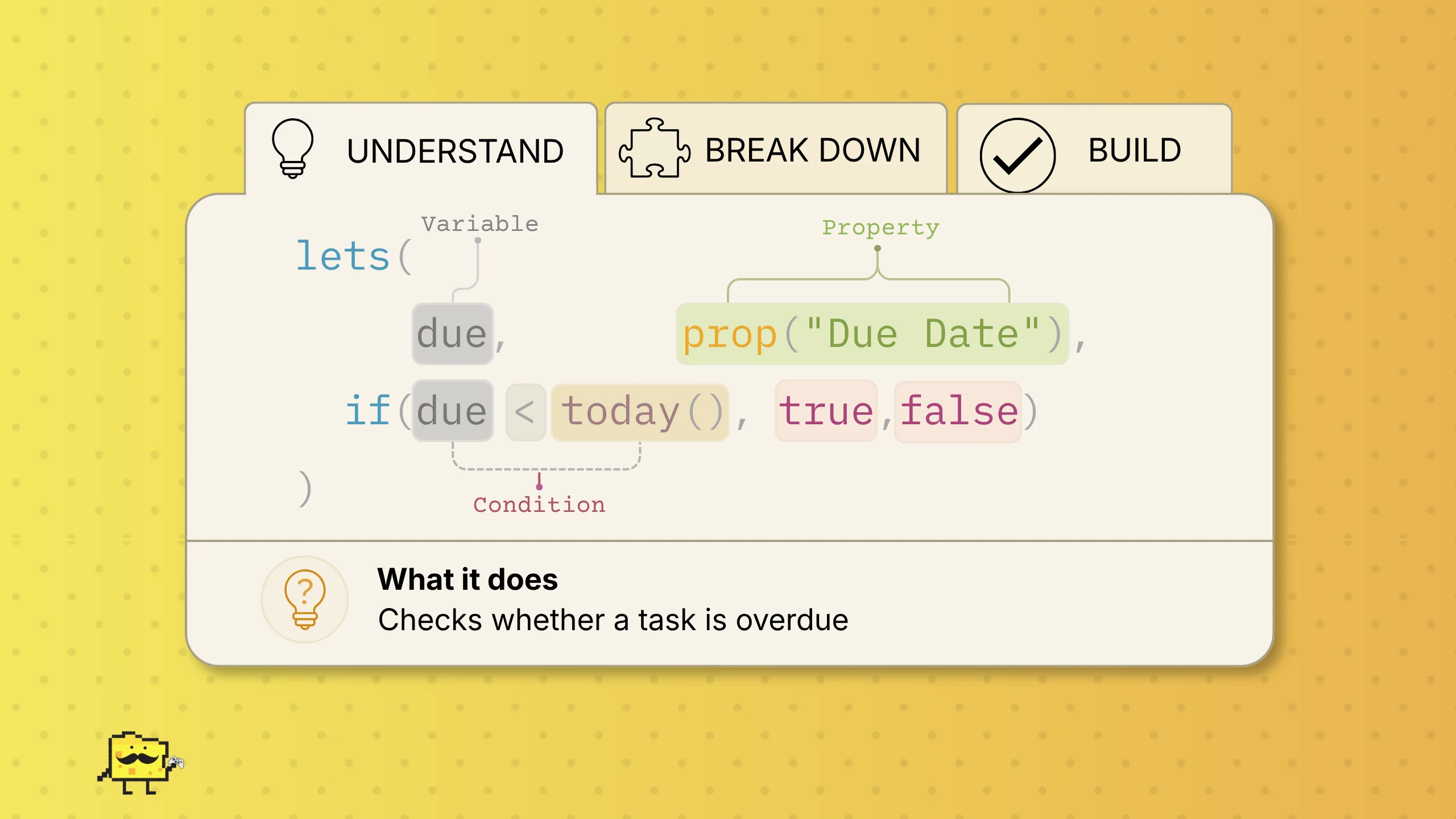
It lets you tell Notion: If something is true, show this. Otherwise, show that.
if(prop("Completed"), "Done", "Not Done")If Completed is checked, the formula returns Done. If it isn't checked, it returns Not Done.
Task Status
if(prop("Task Completed") >= prop("Total Tasks"), "Complete", "In Progress")Goal Status
if(prop("Progress") >= 1, "Goal Reached", "In Progress")Notice that if Progress is stored as a decimal percentage, 100% is represented as 1, not 100. This is another reason understanding what your formula actually returns matters.
Priority
if(prop("Priority") == "High", "🔴 High Priority", "Normal")Conditional formulas are one of the easiest ways to make a Notion database feel intelligent.
Dates and Time
Formulas can also work with dates. This is one of the most useful areas of Notion formulas because dates are constantly changing.
- Assignment deadlines
- Project timelines
- Habit tracking
- Birthdays
- Subscription renewals
- Countdown systems
- Goals
Imagine an assignment is due in 12 days. Tomorrow, you shouldn't have to manually change that to 11 days. A formula can calculate it automatically.
This is where formulas start becoming really powerful: you just gotta build it, and you're done.
Formulas Don't Have to Look Boring
A formula doesn't have to return a plain number. You can use formulas to create useful visual information too.
70%
███████░░░ 70%
🟢 On Track
🟡 Almost Due
🔴 Overdue
You can also use Notion's style() function to make formula output look much better.
style("Beautiful", "green", "c", "green_background", "b", "u", "i")You can use b for bold, u for underline, i for italics, c for code, and s for strikethrough.
You can also change the text colour using colours such as gray, brown, orange, yellow, green, blue, purple, pink, and red. Add _background to a colour to use it as a background colour.
Your First Useful Formulas
Now that you've got the basics, here are a few formulas worth knowing.
Progress Percentage
prop("Completed") / prop("Total")Set the Formula property's number format to Percent. Useful for goals, projects, assignments, habits, and basically anything with a beginning and an end.
Remaining
prop("Total") - prop("Completed")If you have 10 total tasks and 7 completed, this returns 3.
Completion Status
if(prop("Completed") >= prop("Total"), "Complete", "In Progress")Automatically determines whether something is finished.
Price × Quantity
prop("Price") * prop("Quantity")Calculates total cost. Useful for budgets, inventory, orders, and business systems.
Don't Just Copy Formulas
You'll find plenty of formulas throughout this Wiki that you can copy and paste. That's useful. But copying is only the beginning.
A formula becomes much more powerful when you understand why it works.
if(prop("Completed") >= prop("Total"), "Complete", "In Progress")Don't just paste it. Ask yourself:
- What property is it using?
- What does >= mean?
- What happens when the values are equal?
- What text does it return?
- Could I change "Complete" to "Finished"?
- Could I add another condition?
Once you start asking those questions, you're no longer just using formulas. You're learning to build them.
Customizing a Formula
Most formulas you find won't perfectly match your database. That's completely normal.
Suppose you find:
prop("Completed") / prop("Total")But your property is called Finished Tasks. You would change the property reference:
prop("Finished Tasks") / prop("Total")The formula needs to reference properties that actually exist in your database.
You can also customize:
- Property names
- Labels
- Emojis
- Numbers
- Thresholds
- Status messages
- Formatting
Common Formula Problems
Even simple formulas can produce errors. Don't panic. Most problems come from a few common mistakes.
Property Names Don't Match
prop("Completed")If your database property is actually called Done, Notion won't know what you're talking about. Make sure the property reference matches your database.
Wrong Property Type
A formula expecting a number won't necessarily work with text.
"Ten" + 5That doesn't make mathematical sense. Make sure the properties you're using contain the type of information your formula expects.
Missing Parentheses
Parentheses determine how parts of a formula are grouped.
(10 + 5) * 2

10 + 5 * 2
Those two expressions don't produce the same result. If a formula looks complicated, check its parentheses carefully.
How to Debug a Formula
When a complicated formula isn't working, don't stare at the entire thing and hope you'll magically spot the problem. Break it down.
Suppose you have:
round(prop("Completed") / prop("Total") * 100)First test the property:
prop("Completed")Does it return the number you expect?
Then test the calculation:
prop("Completed") / prop("Total")Then add the rest of the formula one piece at a time.
When debugging, make the formula smaller until it works. Then add the pieces back one at a time. It's much easier than trying to fix a giant formula all at once.
Where to Go Next
You've now learned enough to start experimenting with formulas. You definitely don't need to know everything before you start building.
One Last Thing
You don't need to become a formula expert to build great Notion systems.
The goal isn't to memorize hundreds of functions or write the most complicated formula possible. The goal is to make Notion work for you.
A good formula should remove repetitive work, make information easier to understand, or help your system respond automatically to what's happening.
Start small. Understand what you're copying. Change things. Experiment. Break formulas when you're learning. Then build them back up.
You don't have to know everything about formulas. You just need to know enough to make Notion do what you want.
Made and maintained by Gerald S., creator of Cheese. This page will keep growing as I learn, build, and find better ways to use Notion formulas.